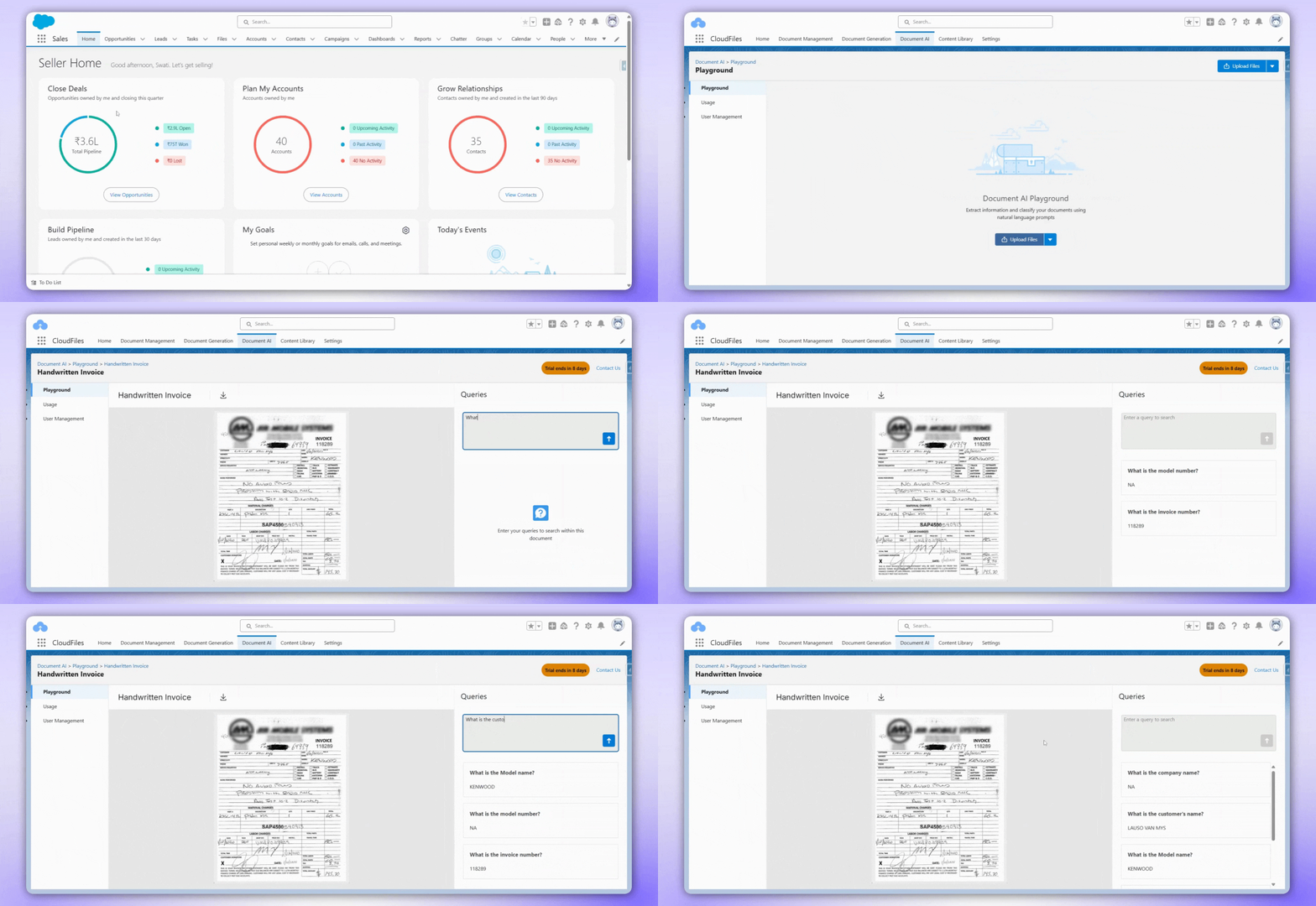
The file types supported in the AI playground include:
- Documents .pdf, .docx
- Image (JPEG, PNG etc) .jpeg .png
Create File Playground
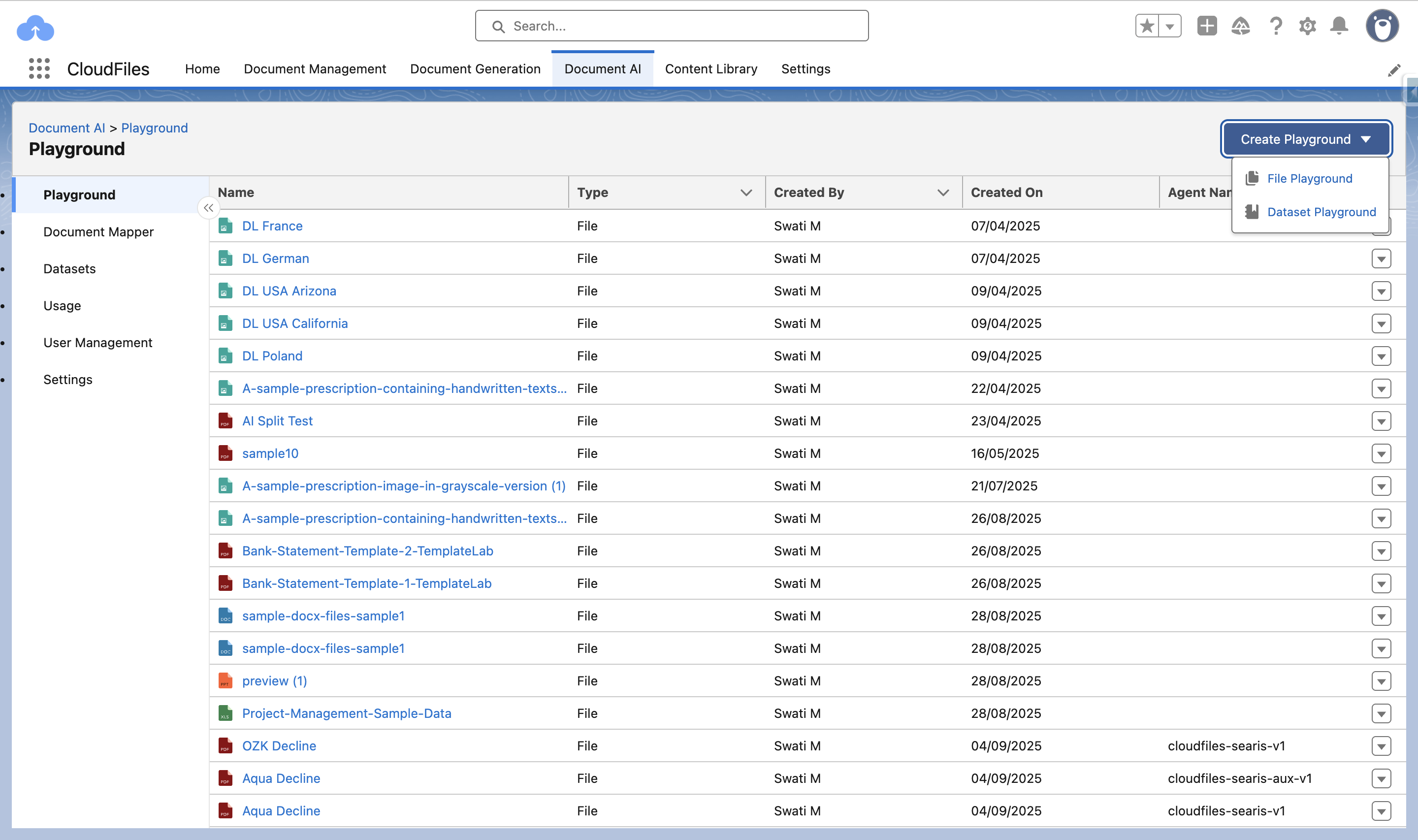
Users can create a File Playground session by navigating to the Playground section, clicking the Create Playground button, and selecting File Playground from the dropdown menu.
After selecting the File Playground option, the Create Playground configuration window appears.
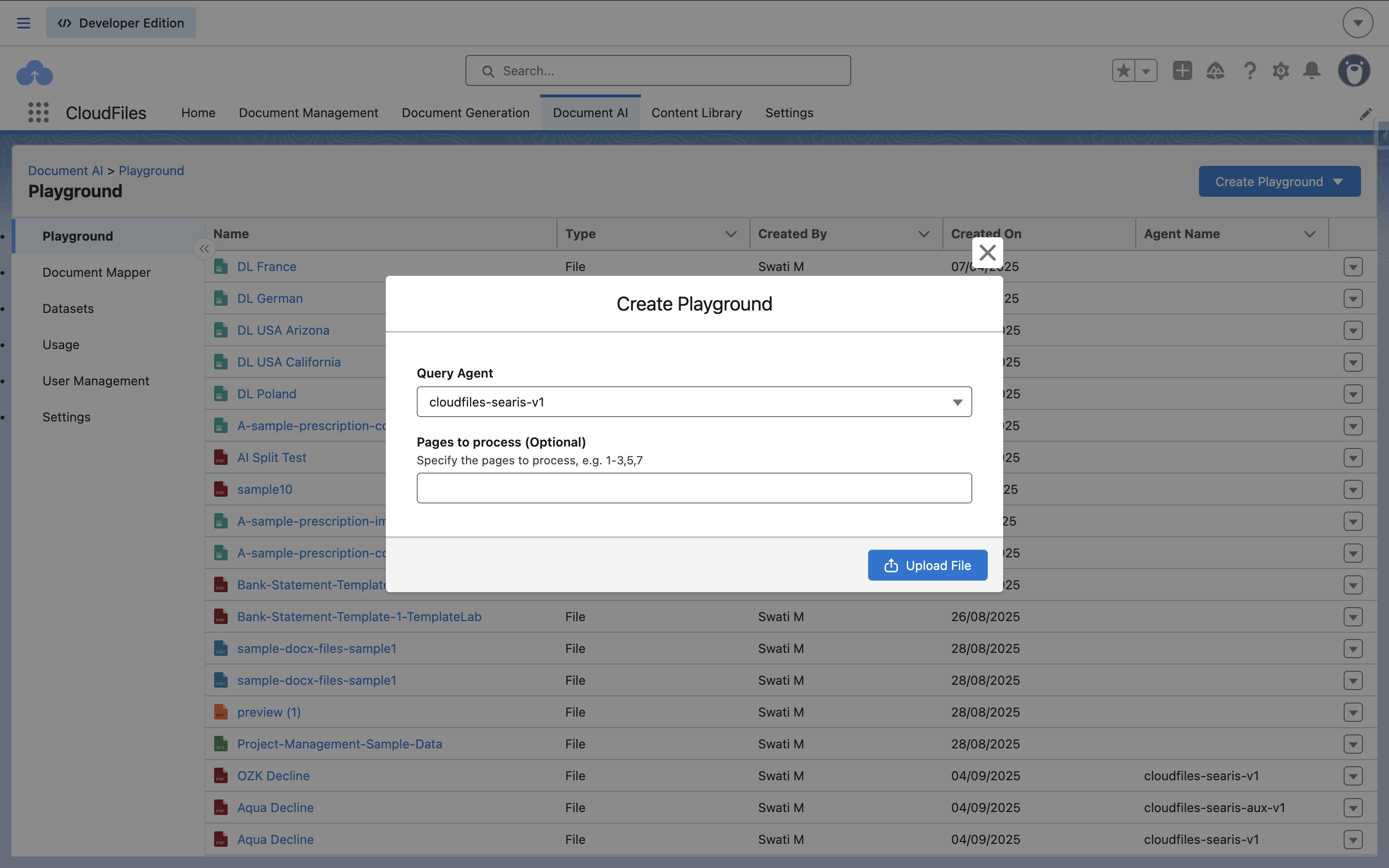
The Create Playground option allows users to configure how a file will be processed before uploading it. Here, you can select a Query Agent (the AI model that will be used to interpret and respond to queries) and optionally specify the Pages to Process. If no pages are specified, the entire document will be processed by default; otherwise, only the selected page numbers or ranges will be used for context.
Once configured, you can upload a file, and CloudFiles will process it with the chosen agent, applying the page-level restrictions you’ve set. This ensures that queries run in the Playground are executed against the right agent and the most relevant parts of the document, giving you more precise and efficient results.
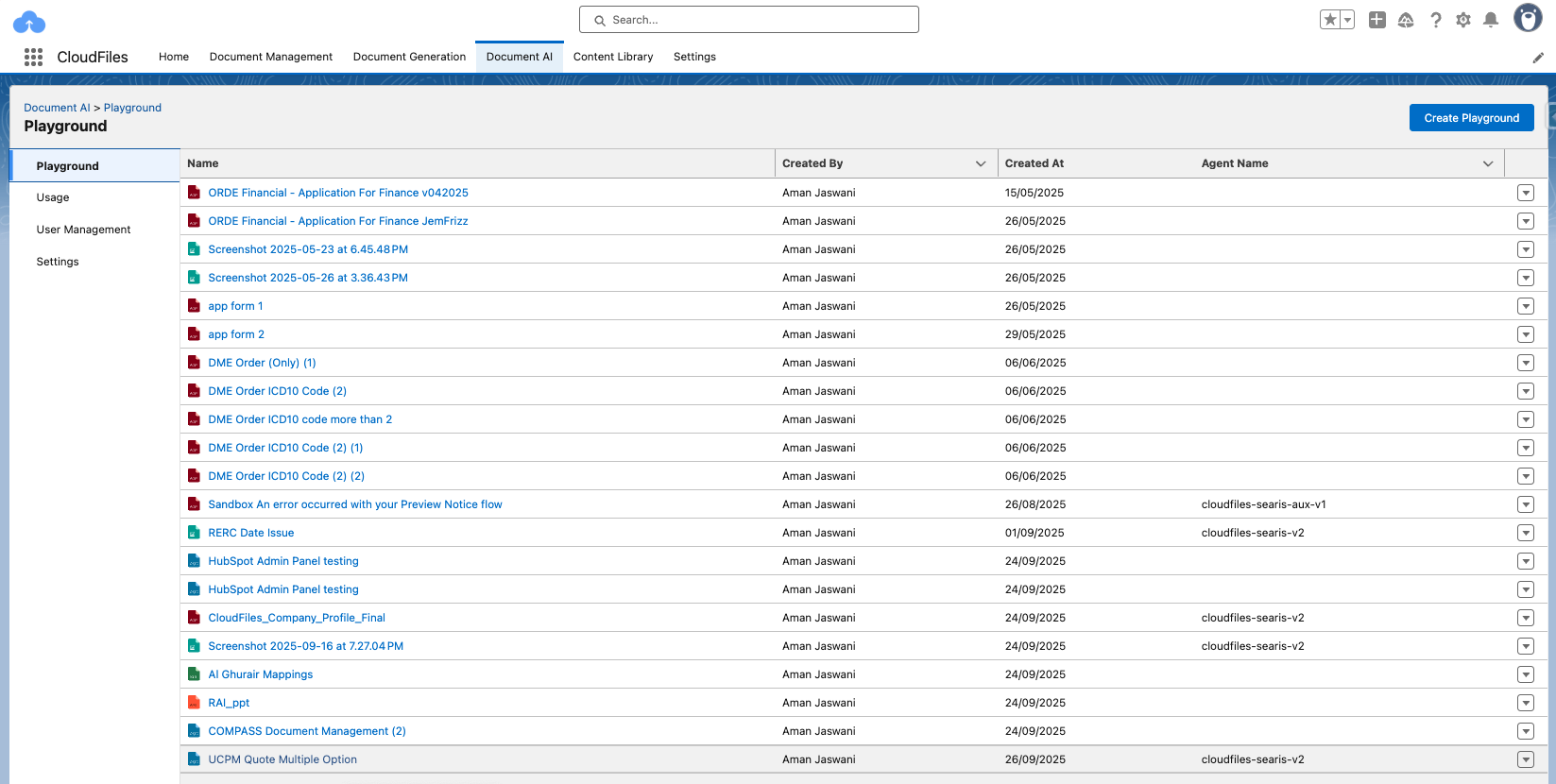
The selected Agent is displayed in the main Playground list once a session is created. This lets users easily compare how different agents respond to the same prompt or document.
Document Viewer
The Document Viewer allows users to preview, zoom in, scroll, and download the uploaded document for easy reference.
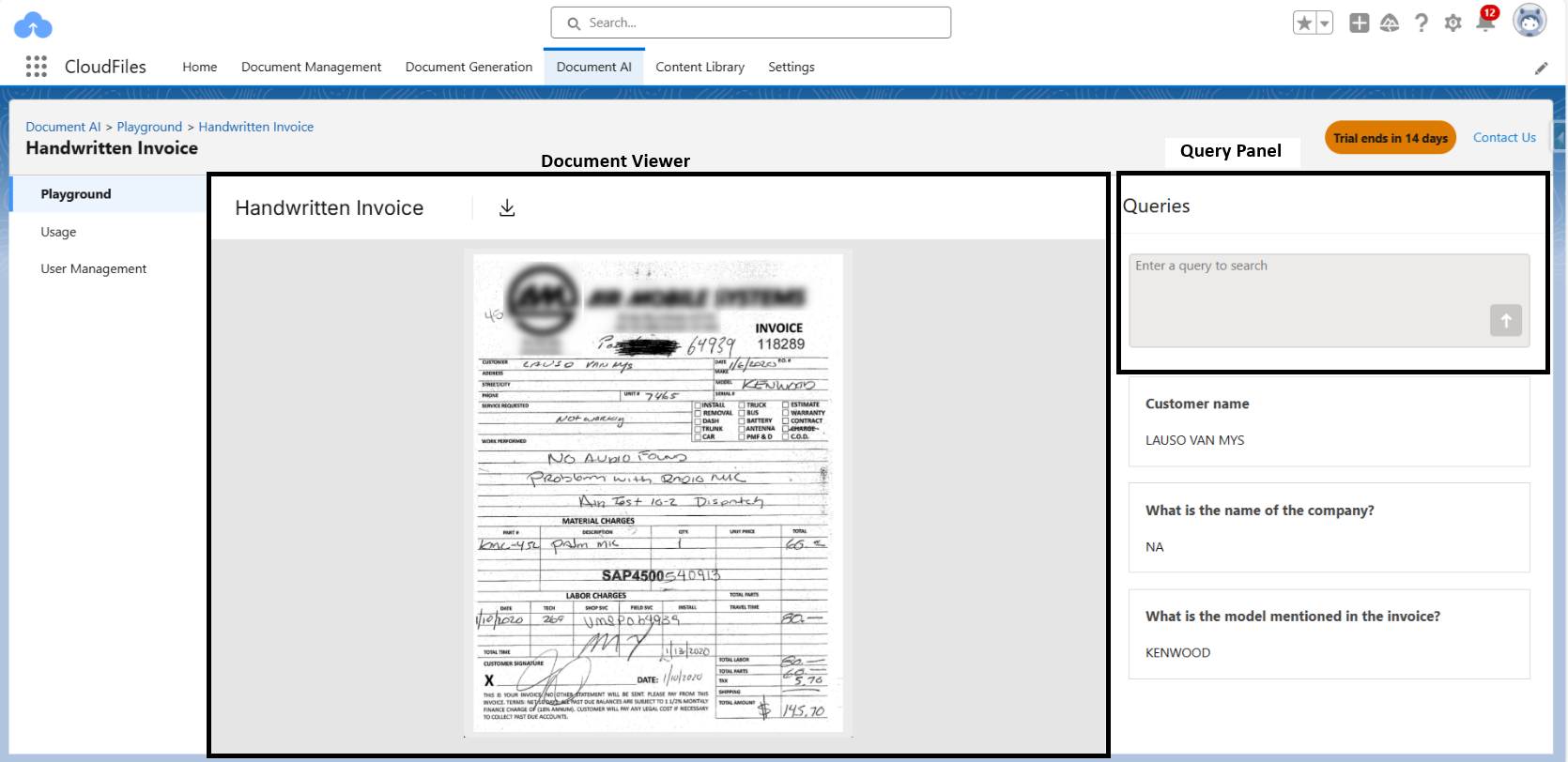
Query Input
The Query Panel enables users to test the effectiveness of queries by inputting relevant prompts and viewing results with uploaded documents. Using Natural Language Processing (NLP), it extracts specific information from both printed and handwritten text, including text from images.
Users can enter queries in any language, and the system processes them based on different prompt types:
- Classification Prompts – Categorize documents (e.g., "Is this a Passport, Driving License, or neither?").
- Extraction Prompts – Retrieve specific details (e.g., "Extract the passport number.").
- Validation Prompts – Verify extracted data (e.g., "Does this document contain a valid ID number?").
- Decision-Making Prompts – Automate workflow actions (e.g., "Should this document be marked as verified?").
- Summary Prompts – Generate concise summaries (e.g., "Summarize the key details of this contract.").
- Complex Calculation Prompts – Extract data and perform calculations on it (e.g., "Find the invoice date and add 30 days to determine the due date.").
Extracted results are always text-based and must be relevant to the document. If the system is 99% or more confident, it returns the extracted result. Otherwise, for low-confidence or out-of-context queries, it displays NA to ensure accuracy.
Query History
The Query History section stores and displays previously asked queries along with their extracted answers for quick reference.