None of these steps touch Salesforce. They read documents and produce values — which a Decision step branches on, or a Salesforce step writes back.
Settings all three steps share
Documents in scope. Every step here lets you choose which of the workflow's declared document slots it reads. Leave every box unchecked to read every document in the run — the panel confirms this with "Reading all documents in the run." Check a specific slot when a workflow carries more than one document and this question should only look at one of them. A stale entry left behind by a deleted slot is marked no longer a declared document; if the workflow declares no slots at all, the panel says so and the step reads whatever documents the run happens to carry.
Confidence. Every AI step reports a confidence score between 0 and 1 alongside its answer, available in the reference picker as its own chip (tagged confidence). Extract fields reports one per field and one for the extraction overall.
Full flow context. These steps run with everything the workflow has produced so far available to them, and they aren't subject to Salesforce callout limits. That's what makes it practical to have several of them in a row, each asking one narrow question.
Ask the document
Ask a free-form question of a document and capture the answer. Runs with full flow context, no callout limits.
Use it for a single fact, or for a verdict you intend to branch on.
- Under Question to ask the document, type your question — placeholder What is the total amount on this invoice?. You can insert references, wrapped in
{{double curly braces}}, that get substituted before the question is asked — for example, "is the invoice total greater than the amount on order{{trigger.order_amount}}?" - Under Documents in scope, choose which uploaded documents this question reads.
Produces: answer and confidence.
Write the question the way you'd brief a colleague — "The invoice total after tax, usually at the bottom of the last page, as a number without a currency symbol" works better than "total."
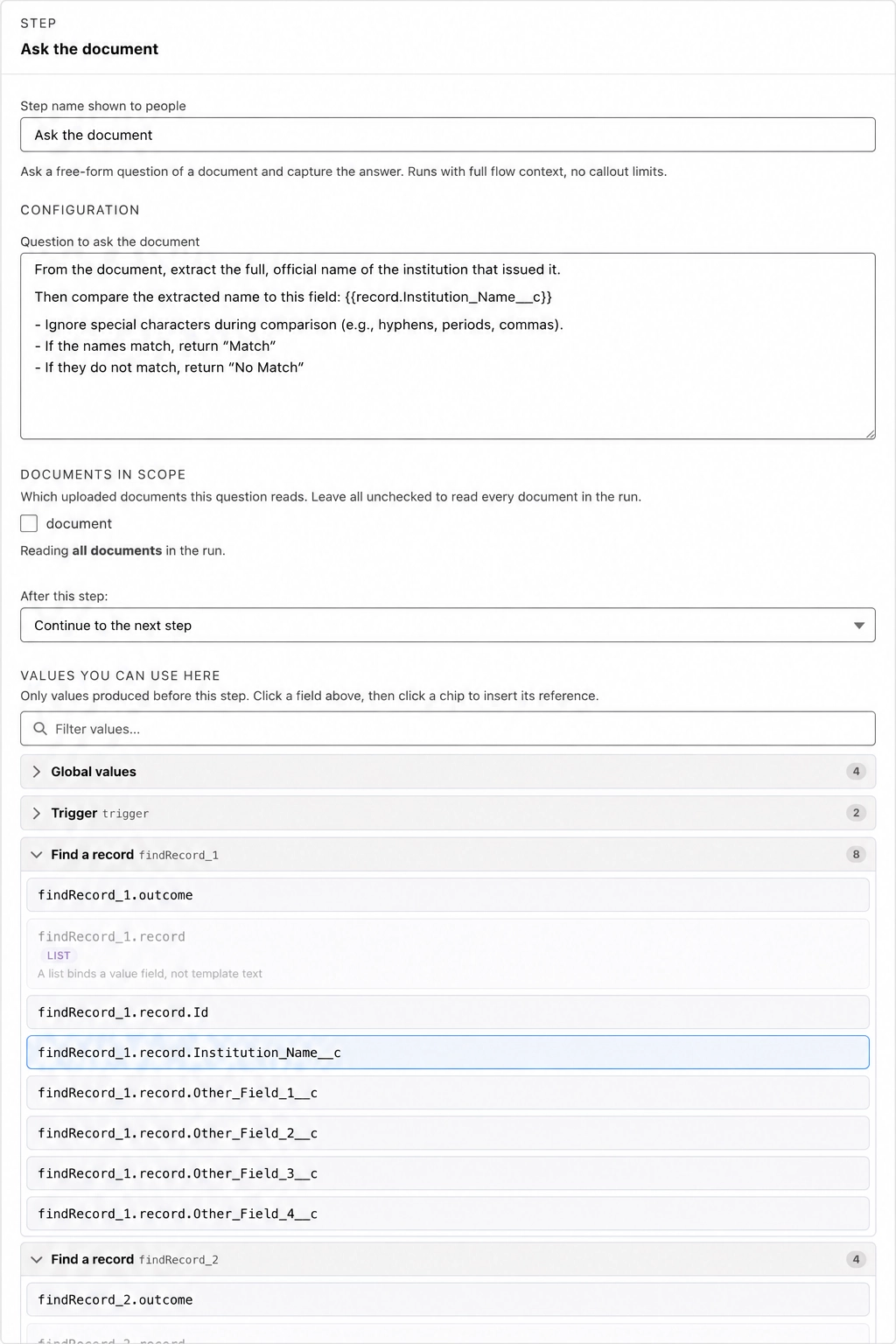
Comparing a document against a Salesforce record
Because the question is assembled from references before it's asked, an Ask the document step is also how you check a document against your data. You put the record's field into the question and tell the AI what answer you want back. The AI reads the document; the Salesforce value arrives as plain text inside the question. Nothing about the record is guessed.
This assumes a Find a Salesforce record or Search Salesforce records step sits above this one and requested the field you want under Return fields — see Salesforce.
- Add the Ask the document step below the lookup, and rename it after the check it performs — one name per thing being verified. The name is what you'll read on the canvas and reference in the Decision step, so a descriptive one pays for itself.
- Click into Question to ask the document, then insert the record's field from Values you can use here — it lands in the question as
{{sf_getRecords_1.record.<FieldName>}}. - Tell the AI where to look in the document, how to normalize what it finds, and exactly what to answer. Constraining the answer to a small fixed vocabulary —
Yes/No, or a status string — is what makes the result usable in a Decision step. - Under Documents in scope, leave the boxes unchecked to read every document in the run, or check a specific slot if the workflow carries more than one.
- Repeat, one step per check. Keeping each comparison in its own step means each one produces its own
answeryou can branch on independently, and a failed check tells you which check failed.
The shape of a comparison question is: find this in the document → normalize it this way → compare it to this reference → answer in these words. For example:
Identify the name of the organization that issued this document. If the name appears only as a code or an abbreviation, expand it to the full name first. Then compare it with {{sf_getRecords_1.record.<FieldName>}} and answer Yes if the two refer to the same organization, or No if they do not.
Three things worth getting right in these questions:
- Do the normalizing in the question, not afterwards. Documents abbreviate where Salesforce spells out, and the same date or term can be written two ways. Describing the mapping inside the question is far more robust than comparing raw strings in a Decision step and then patching the mismatches.
- Ask for the verdict, not the raw value, when the verdict is what you'll branch on. A step answering
Yes/Nogives the Decision step a clean equality test. A step that returns the raw value leaves you comparing two strings that may differ only in punctuation. - Let a check report its own ambiguity. A comparison that can't be resolved is not the same as a failed comparison. Give it a third answer — a status like
Manual Review Pending— and route that to a person instead of forcing a Yes or No.
Where a check needs a number rather than a verdict — an amount, a count, a total — have the step return just the number with no label or currency symbol, and do the threshold comparison in the Decision step, where is less than and friends are available.
A hand-typed reference one character off — a single underscore short of the real API name — isn't a reference at all. It's literal text that gets pasted into the question verbatim, and the AI dutifully compares the document against that gibberish and answers No. The step succeeds, the workflow publishes, and every run quietly fails the check. Clicking the chip is the only way to be sure the path is real.
Classify
Sort a document (or value) into one of a fixed set of labels you define.
Pair it with a Decision step to route the run by document type.
- Under Labels (comma-separated), list at least two labels — placeholder invoice, receipt, contract.
- Under Documents in scope, choose which uploaded documents this step reads.
Produces: category and confidence.
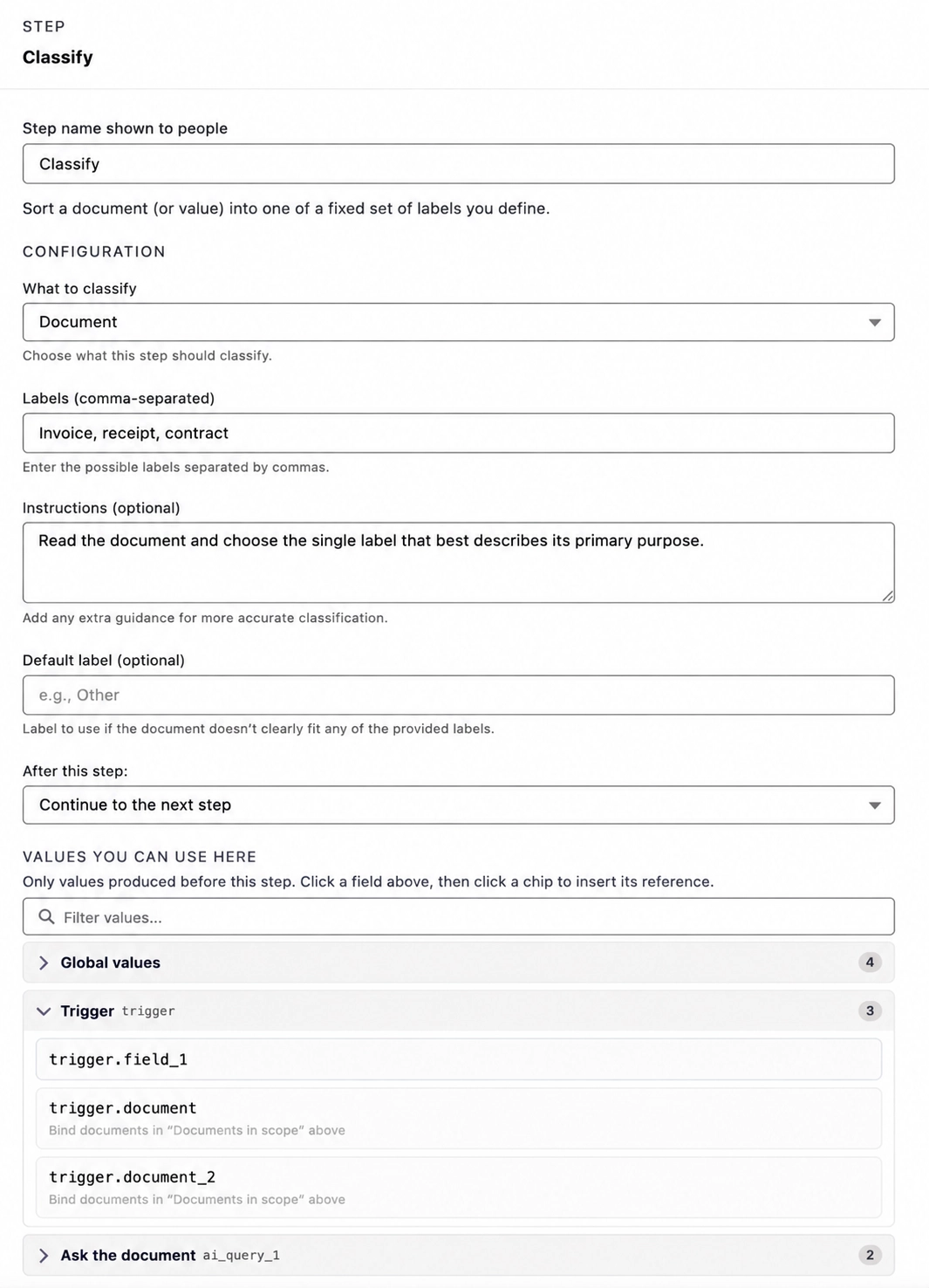
The step is guaranteed to return one of your labels exactly as typed — it cannot invent a new one, which is what makes a category equals comparison in a Decision step safe.
Extract fields
Pull structured fields from a document against a schema you build — each field typed.
This is the workhorse step: use it when you want a structured record rather than a single answer.
- Under Fields to extract, click to add a row for each field.
- Give it a Field name — the name used to read the value later.
value,confidence,data, andfieldConfidenceare reserved and can't be reused. - Set its Type:
string,number,integer,boolean,date,datetime, or list of items. - Optionally fill in a Description telling the AI where to look and what format to expect — for example, "the total after tax, bottom of the last page." This is optional but resolves most ambiguity, so it's worth setting.
- Use Remove to delete a field.
Lists of items
Choosing list of items opens a nested editor headed "Each item in the list has these fields" — add one row per column, each with its own Item field name, a type (any of the above except list), and an optional "Guide the AI for this item field (optional)" description. You need at least one item field, or you'll see Describe at least one item field.
This nested list is what feeds the two steps that work per-item: a For each loop, or Create Salesforce records (bulk). Both bind it by reference, and a list field's reference is the field name plus .value — a list field named line_items on step ai_extract_1 is ai_extract_1.line_items.value. Insert it by clicking its chip, which carries the list tag; the two steps that accept a list only accept a chip tagged that way.
Nesting is one level deep; a list of lists isn't supported in the builder.
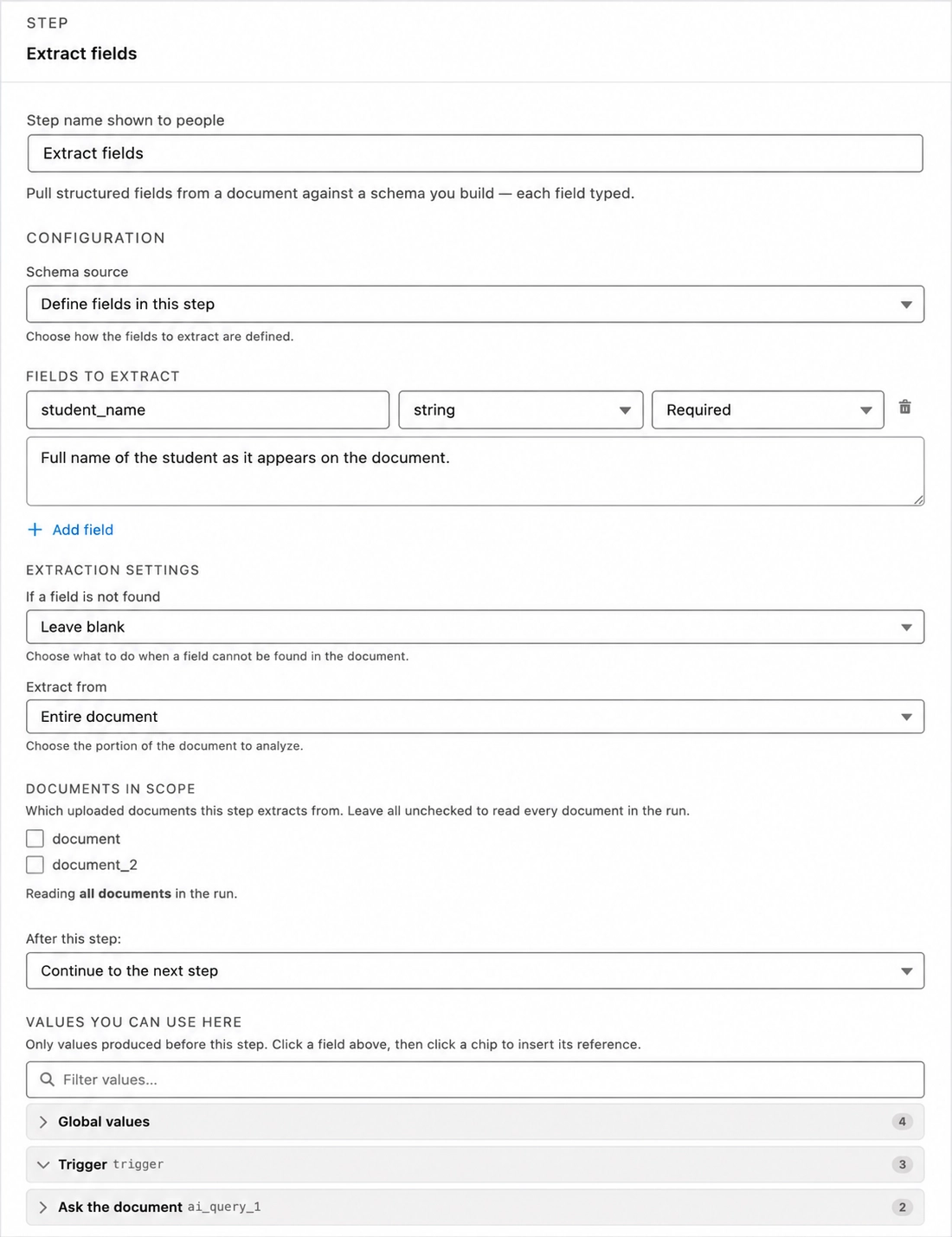
Produces: the value and a per-field confidence score for each declared field, plus one overall confidence for the whole extraction. In the reference picker, each field shows with a chevron (Show confidence) to reveal its score alongside, and a list-of-items field carries the list tag.
If an invoice has no PO number, the extraction returns nothing for it, and a later write step simply leaves that Salesforce field untouched rather than emptying it. This is deliberate; there's no way to make a workflow deliberately clear a field.
If a document would return an enormous amount of data (thousands of rows), the step narrows the extraction itself rather than silently truncating it — as a rule, extract the columns you actually need rather than every column on the page.
Choosing between the three steps
| What you need | Step |
|---|---|
| One fact off the page, or a Yes/No verdict against a Salesforce value | Ask the document |
| To route the run by what kind of document arrived | Classify |
| A structured set of typed fields | Extract fields |
| A repeatable set of rows — line items, charges, entries | Extract fields with a list of items field |
A step that answers one question produces one value you can branch on, and when it gets something wrong you know exactly which check to fix. A single step asked to verify five things at once gives you one answer and no way to tell which of the five failed.
Related
- Workflows — creating the workflow, the launch form, references, validating and publishing.
- Salesforce — the lookups that supply the values these steps compare against, and the writes that record the result.
- Logic — the Decision step that turns these answers into an outcome, and the For each loop that consumes an extracted list.