Introduction
The CloudFiles: Run Doc AI Workflow flow action starts a published Document AI Workflow from a Salesforce flow. A workflow is a multi-step document automation designed and published in CloudFiles: it reads one or more documents with AI, looks up and compares against Salesforce data, branches on what it finds, and writes records back, with every step audited on the CloudFiles side.
This action is how a Salesforce automation plugs into that workflow. It tells CloudFiles which workflow to run, which files fill the document slots the workflow expects, and what context to carry into the run. The workflow’s own steps do the rest, so the flow stays small: find the file, start the run, and let the workflow handle the reading and the record updates. Workflows are designed and published in the CloudFiles app; see the Workflows guide.
What this action does
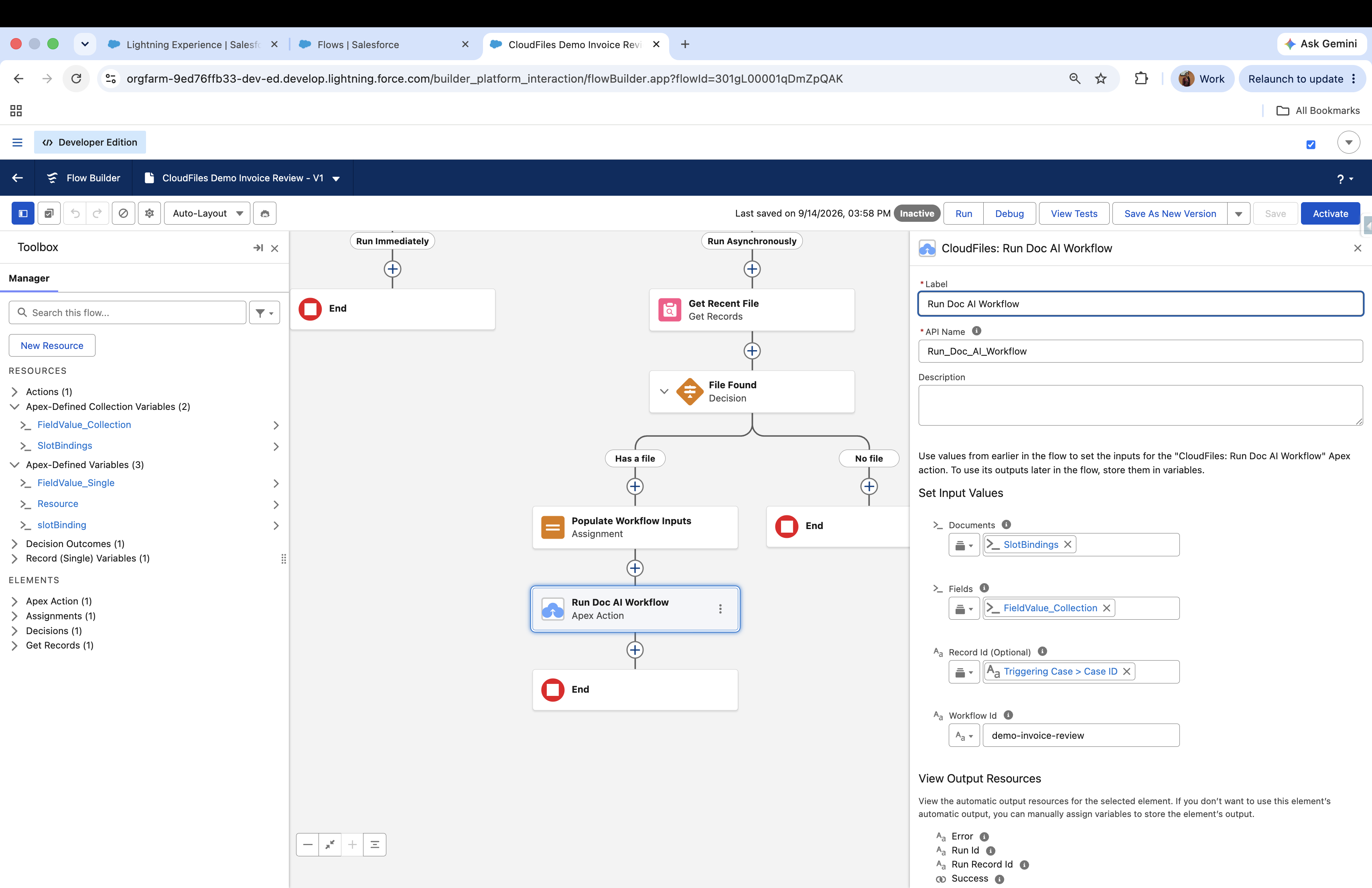
The Run Doc AI Workflow action starts a run of the workflow identified by the Workflow Id, against the files bound in Documents, with any Fields passed in as context. CloudFiles executes the workflow’s steps on its side and records the run on the CloudFiles Doc AI Run object in Salesforce.
The action runs asynchronously. It returns as soon as the run is accepted, so the flow continues before the workflow has finished, and the workflow’s results are not returned into the flow.
Consider a Case whose Status is set to Working. A record-triggered flow picks up the most recently attached file, binds it to the workflow’s invoice slot, passes the Case id in as a field, and starts the demo-invoice-review workflow. The workflow reads the invoice, produces its outputs, and the run appears against the Case. The full build is under See it in action below.
This action makes an external callout, so a record-triggered flow cannot run it in a path that runs immediately. Place it on a scheduled path set to Run Asynchronously After Transaction Completes. If you skip this, the flow saves apparently fine and is then invalid, with the reason not shown on the canvas. The underlying message is “A record-triggered flow can’t execute actions that make external callouts in a path that runs immediately.”
Input Parameters
In your Flow Builder, search for the element named “CloudFiles: Run Doc AI Workflow” in the CloudFiles category of the Action element. Select it to insert it into the flow, then configure the input parameters below.
| Parameter | Type | Description |
|---|---|---|
| Workflow Id | Text | The id of the published workflow to run. |
| Documents | cldfs__DocumentSlotBinding collection | The files to read, each paired with the slot it fills. Maximum 2000. |
| Fields (Optional) | cldfs__FieldValue collection | Name and value pairs passed into the run as context. Maximum 2000. |
| Record Id (Optional) | Text | The record the run is associated with. |
Workflow Id
The identifier of the published workflow you want to run. This is not a Salesforce record id. It is set by whoever authored the workflow and usually reads as a short slug, such as invoice-review.
Enter it as plain text, or pass it from a variable or formula to keep it configurable. Flow Builder does not check the value, so a workflow that has not been published only fails once the flow runs.
The same Workflow Id is used in every environment. A workflow keeps its id when it is moved from sandbox to production, so a flow that references it does not need editing as you promote it. The action always runs the latest published version of the workflow, so improving a workflow never means editing the flows that call it.
Documents
The files the workflow should read, each paired with the slot it fills. A workflow declares named document slots, for example invoice or purchase_order, and this input says which file belongs in which slot.
Workflows accept pdf, xlsx, xlsm, xls, csv, tsv, html, htm, docx, docm, odt, pptx, pptm, ppsx and ppsm. Images are not supported, so a scan saved as JPG or PNG fails the run before any step is reached, even though other Document AI actions accept images. Convert to PDF first.
This input takes a collection of the Apex-defined type cldfs__DocumentSlotBinding (maximum 2000). Each binding holds:
- slot - The slot name exactly as the workflow declares it. Slot names are case sensitive. To send several files to the same slot, add several bindings with the same slot name.
- resource - The file, as a CloudFiles Resource.
Documents takes cldfs__DocumentSlotBinding, not cldfs__Resource. Passing a Resource collection directly saves without complaint and leaves the flow invalid. Build the bindings as below and pass the binding collection.
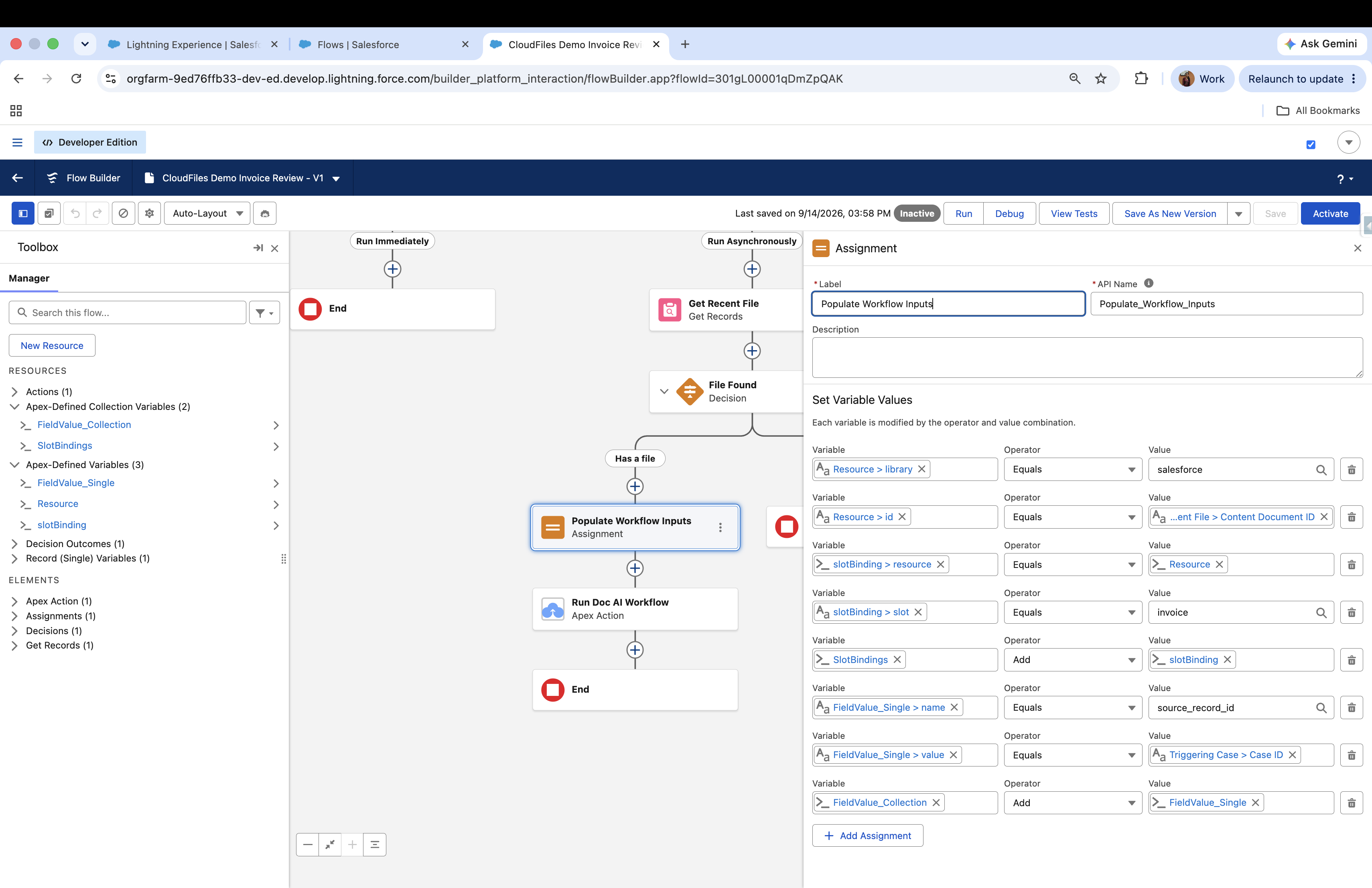
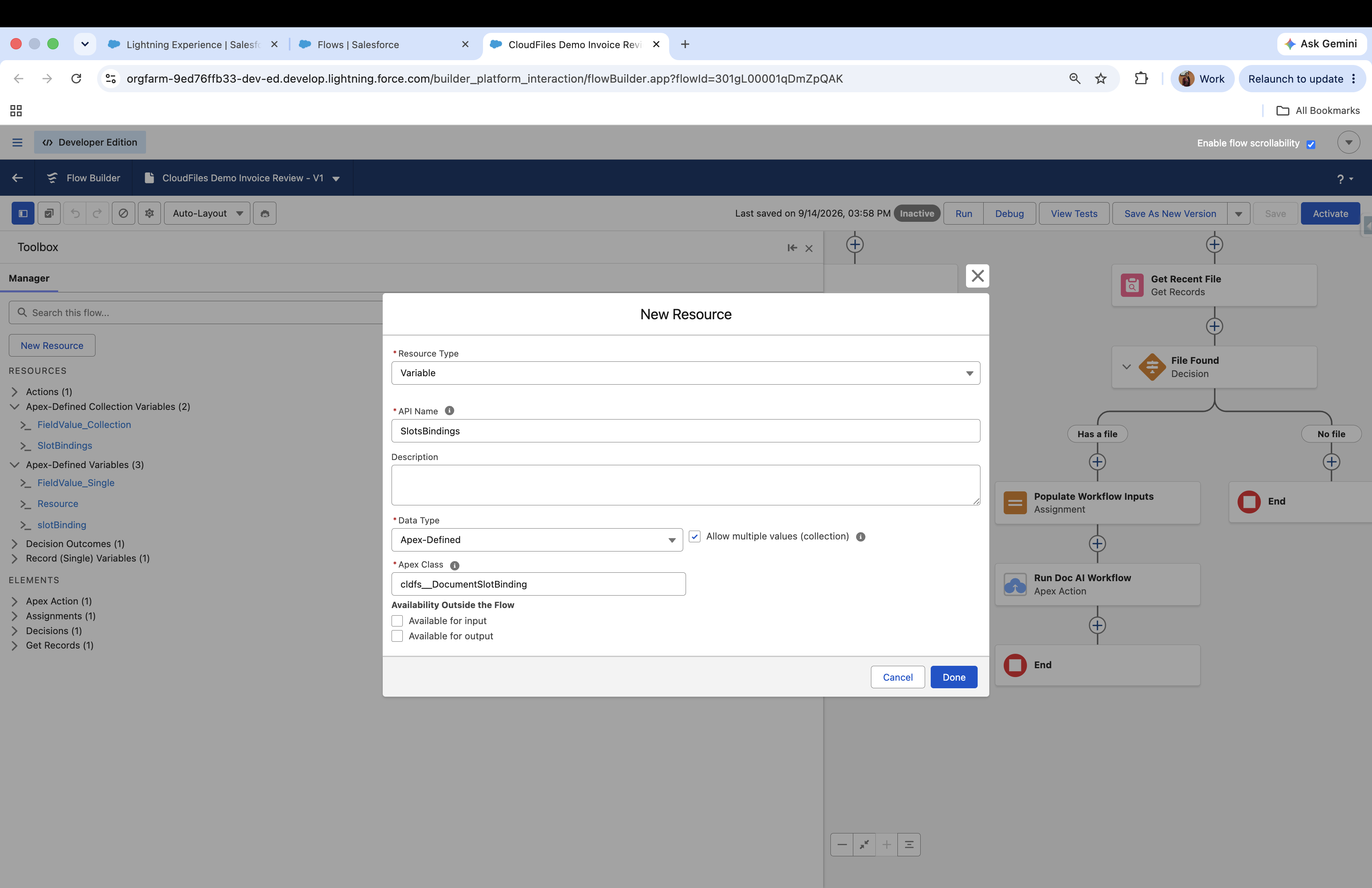
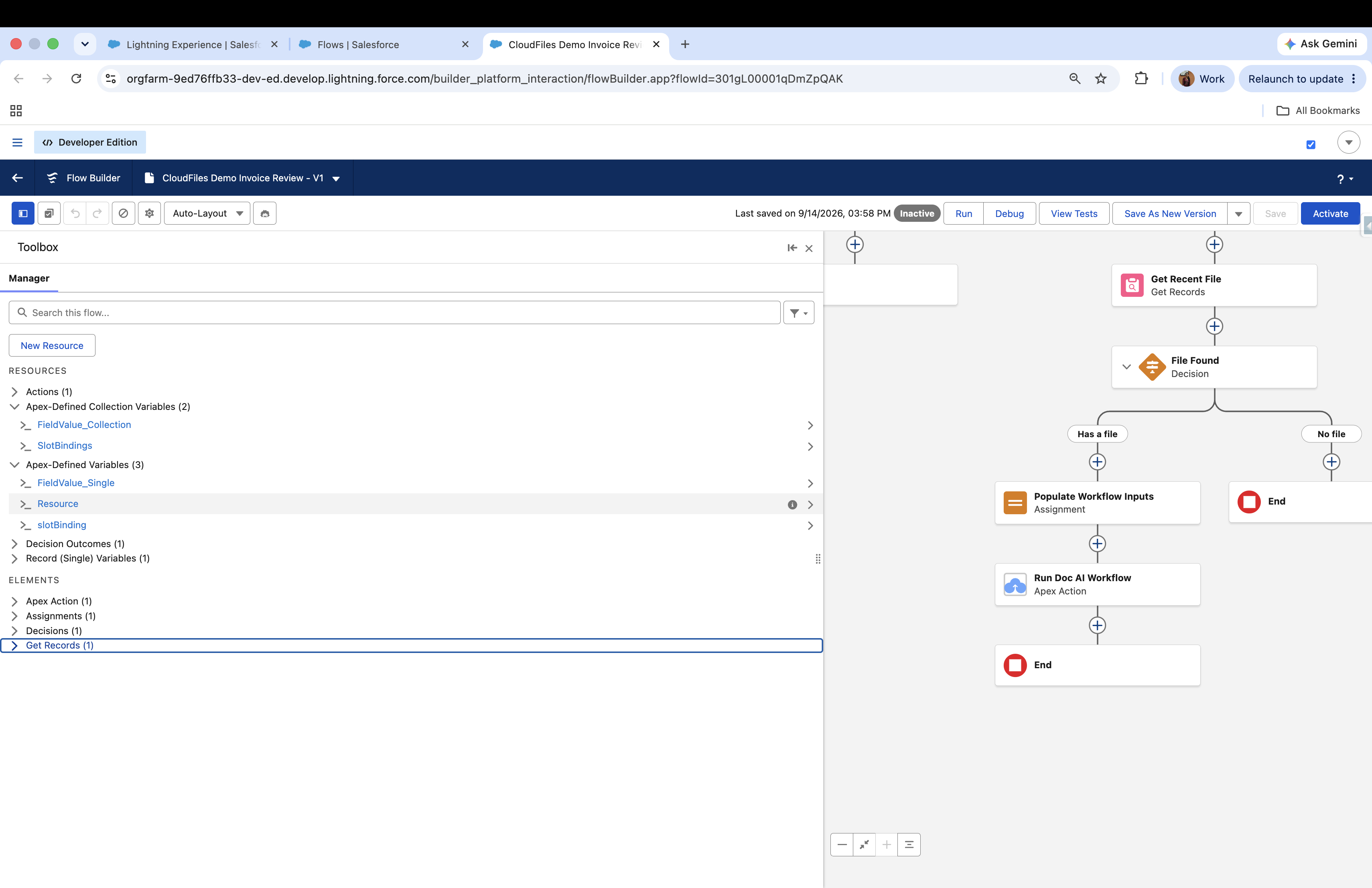
cldfs__Resource (named Resource below), one of Apex Class cldfs__DocumentSlotBinding (slotBinding), and one more of cldfs__DocumentSlotBinding with Allow multiple values (collection) ticked (SlotBindings).{!SlotBindings} as the Documents input. To bind more files, repeat step 2 for each one before the action.Resource.library Equals salesforce
Resource.id Equals <ContentDocumentId of the file>
slotBinding.resource Equals {!Resource}
slotBinding.slot Equals <slot name, for example invoice>
SlotBindings Add {!slotBinding}The collection row uses Add; the rest use Equals. Using Equals on a collection replaces it instead of appending. The order matters because Flow copies the value at the moment of assignment, so Resource must be complete before it is assigned into slotBinding.
To bind a Salesforce file
Set the Resource’s parameters as follows (parameters are case sensitive):
- library -
salesforce - id - The ContentDocumentId of the Salesforce File.
You can get the ContentDocumentId from standard elements like “Get Records” or the Screen Flow “Upload Files” component, or from CloudFiles Events like Salesforce File Attached. Use the ContentDocumentId, not the ContentVersion id.
Here library describes where the file currently lives, and for a file stored in Salesforce it is always salesforce. Other CloudFiles actions use a parameter also called library to name a copy destination, and those two do not share the same set of values.
To bind an external storage file
If you are using the CloudFiles: Document Management package as well, you can bind a file in connected external storage:
- library - The external storage type:
sharepoint,google(for Google Drive),onedrive,dropbox,box,azure,cloudfiles(for AWS S3). Case sensitive. - driveId - The Id of the drive where the document resides. Required for Google Drive and SharePoint only.
- id - The Resource Id of the file.
Based on the use case, you can get these parameters from CloudFiles Events like File Uploaded or File Received.
Fields (Optional)
Values passed into the run alongside the documents. Use this for anything the workflow needs that the document does not contain, such as the id of the record that triggered the flow or a category chosen earlier in the flow.
This input takes a collection of the Apex-defined type cldfs__FieldValue (maximum 2000). Each one holds:
- name - Must match an input the workflow declares.
- value - The value, as text.
All values are text. Dates, numbers and record ids are passed as strings and the workflow interprets them.
cldfs__FieldValue: a single one (FieldValue_Single below) and a collection with Allow multiple values (collection) ticked (FieldValue_Collection).{!FieldValue_Collection} as the Fields input.FieldValue_Single.name Equals source_record_id
FieldValue_Single.value Equals {!$Record.Id}
FieldValue_Collection Add {!FieldValue_Single}Record Id (Optional)
The record the run should be associated with, usually the record that triggered the flow. It is written to the Parent Record Id field on the CloudFiles Doc AI Run record, so you can find a run from the record it came from.
Record Id is a label on the run rather than a link. It does not connect the run to any records the workflow creates, and the workflow’s own steps cannot read it. If the workflow needs the record id, pass it through Fields as well.
The action’s definition marks all four inputs as optional, and Flow Builder labels only Record Id as (Optional) on screen. Nothing stops you saving the action with Workflow Id or Documents empty; the failure then arrives at run time.
Output Parameters
The action returns four values into the flow:
- Success (Boolean) - Whether the run was accepted.
- Run Id (Text) - Identifier of the run in CloudFiles.
- Run Record Id (Text) - Id of the CloudFiles Doc AI Run record in Salesforce.
- Error (Text) - Error text where the run was not accepted.
The action is asynchronous, so these describe whether the run started, not what the workflow found. Workflow results are not returned into the flow.
Do not branch on Success as though it were a run result. A run that returns Success = true and then fails is the normal shape of a failure here, because the action returns as soon as the run is queued. Use Run Record Id to find the run and read the outcome from the run record.
Runs are recorded on the CloudFiles Doc AI Run object. Open the CloudFiles Doc AI Run tab, or query it:
SELECT Id, cldfs__Parent_Record_Id__c, cldfs__Status__c, cldfs__Config_Version__c, CreatedDate
FROM cldfs__CloudFiles_DocAI_Run__c
ORDER BY CreatedDate DESC
LIMIT 10
The statuses to expect are Completed and Failed.
Completed means the workflow ran, not that it found what you asked for. A step that cannot answer from the document does not fail the run: the workflow completes and that step’s output is empty. If a run completes with blank outputs, the mechanics are working and the question or the document is the problem.
A failed run carries its status and not the reason. The reason is held with the run in CloudFiles rather than in Salesforce, so a failure that needs diagnosing is a question for CloudFiles support.
The run record shows the status and Parent Record Id in the header, the file the run started with, the workflow’s outputs, and one entry per step with what it produced and a confidence figure.
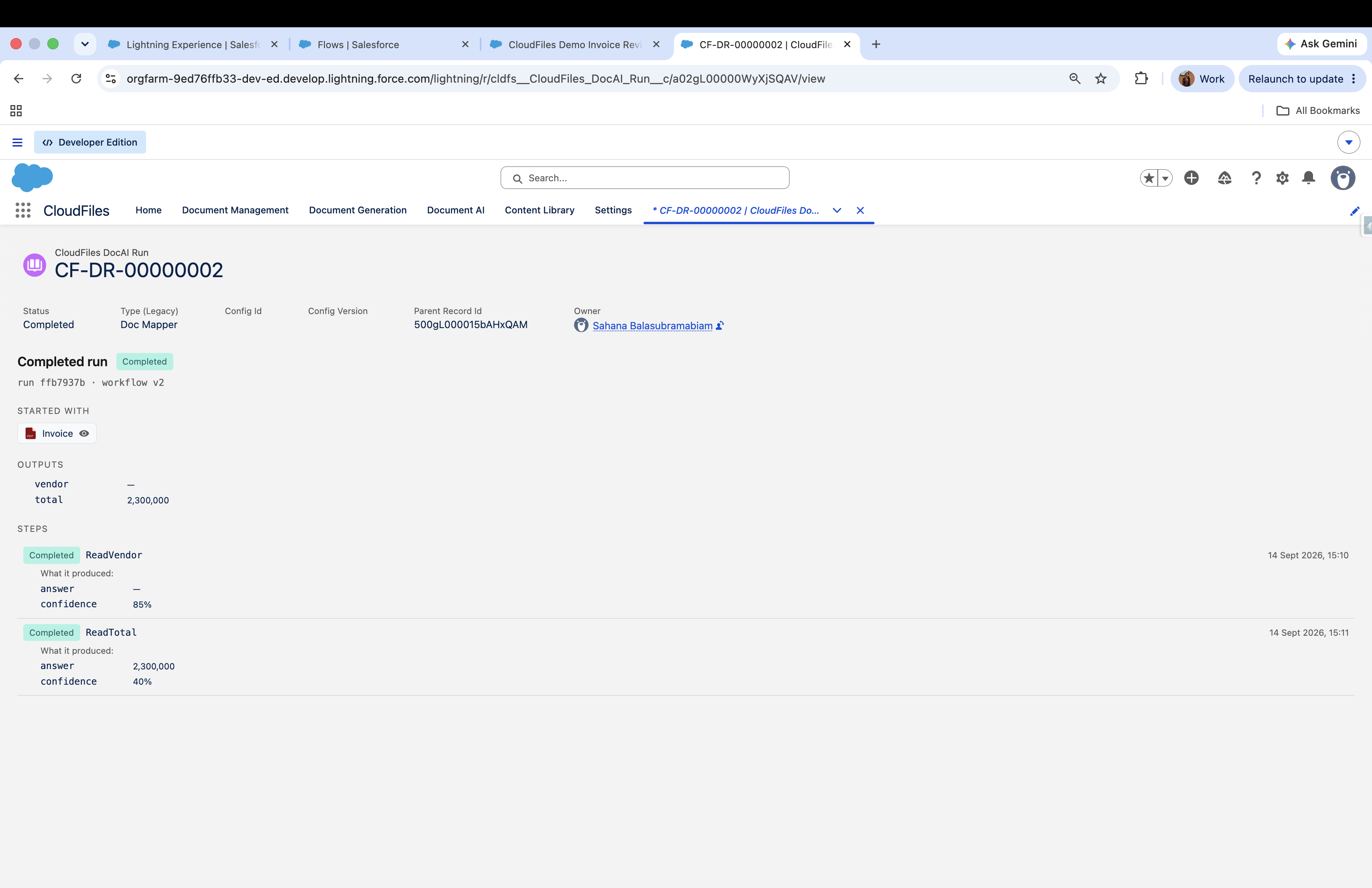
Config Id and Config Version are empty on every workflow run, successful ones included. Those fields belong to Document Mapper runs, which share this object, and for the same reason Type (Legacy) reads Doc Mapper on a workflow run. An empty Config Version is not a sign that anything went wrong.
See it in action
Here is the flow used as the example in this article. A Case moved to Status Working sends its most recent file to the demo-invoice-review workflow, which declares one document slot, invoice, and one input field, source_record_id.
ContentDocumentLink, filtered on LinkedEntityId Equals {!$Record.Id}, sorted by SystemModstamp descending and storing the first record, gives the most recently attached file. A Decision on its ContentDocumentId Is Null False sends the flow to End when nothing is attached.{!SlotBindings}, {!FieldValue_Collection}, {!$Record.Id} and the Workflow Id demo-invoice-review.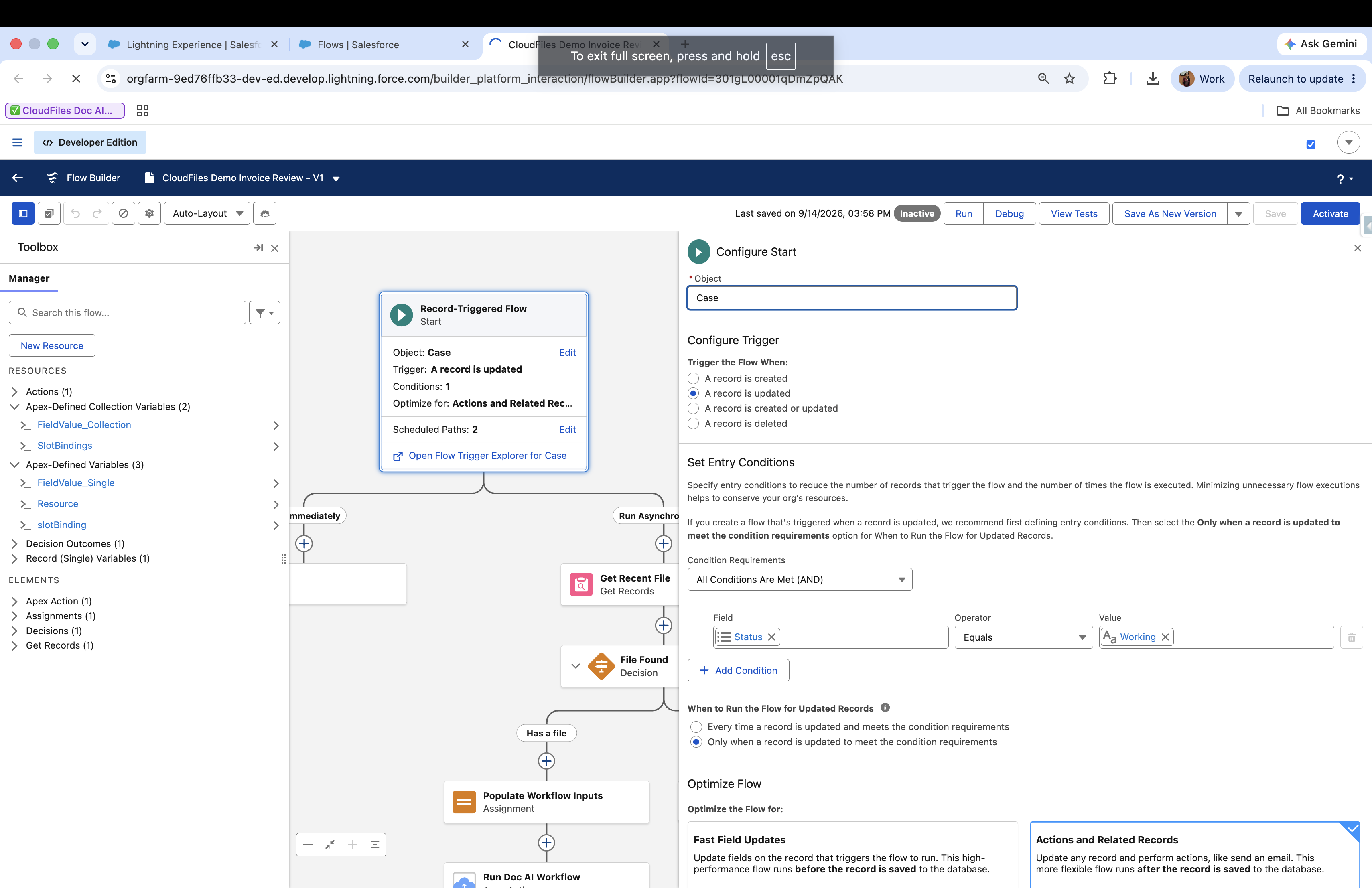
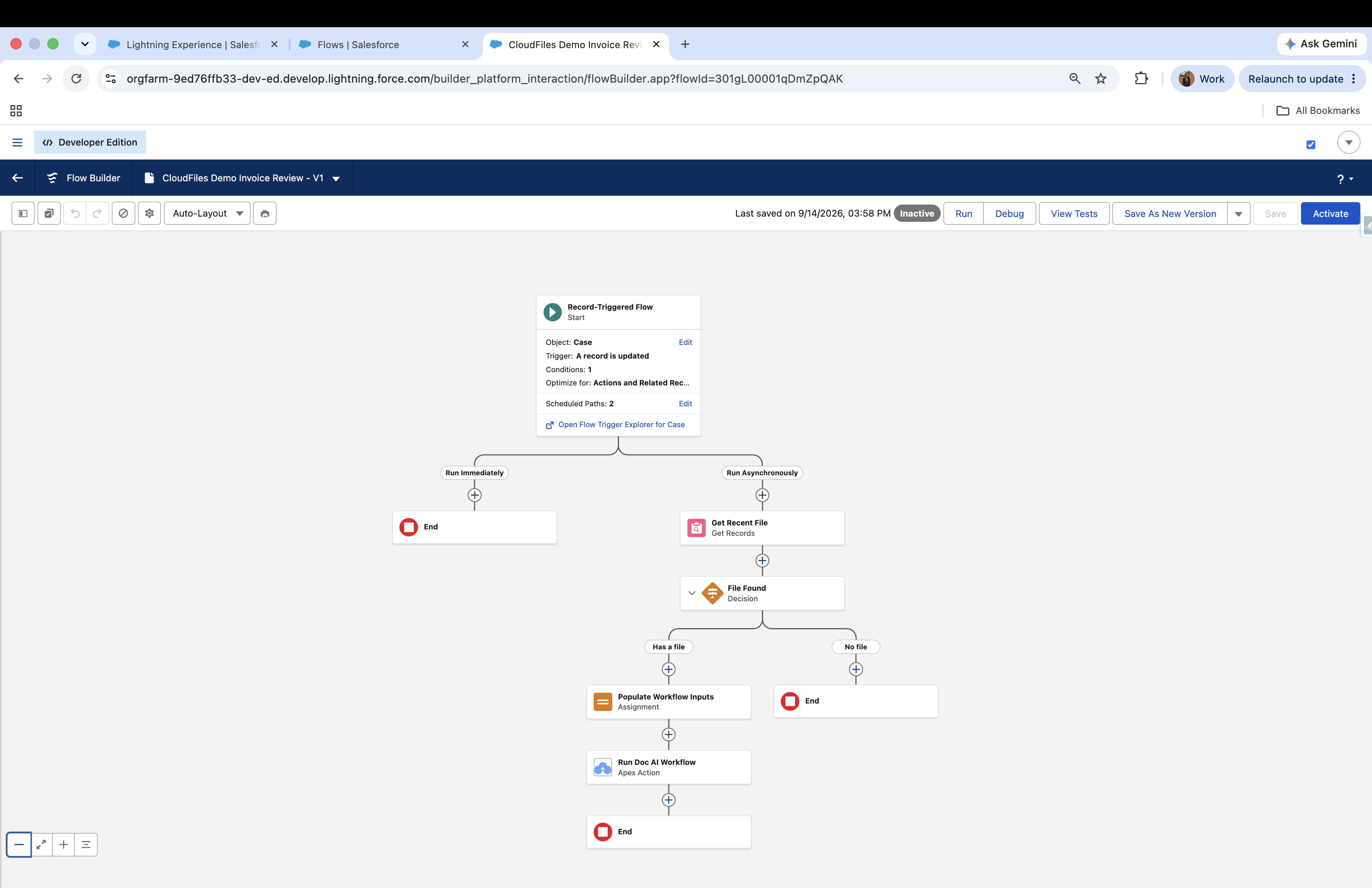
If a run fails with a null value error, an empty or partly built collection reached the action. A decision testing a collection with Is Null False still passes when the collection is empty, so guard Documents and Fields with Is Empty False as well.