Overview
In this tutorial, we will see how CloudFiles can be used with Salesforce flow automations to extract data from documents in a structured JSON format. Each time a file is uploaded into Salesforce or external storage, the following actions will occur:
- The file is processed using CloudFiles Document AI.
- A natural language query is executed to extract information from the document in a JSON format tailored to your object and field structure.
- The extracted data is parsed and processed using Salesforce Apex.
Pre-requisites
Before starting with this tutorial, you need to ensure that CloudFiles Document AI is properly installed & configured in your system. Additionally, you also need to create some initial automations to process the files before you can query them. Check the 2 sections below carefully -
Installation & Configuration
Ensure the following before starting:
- CloudFiles Document AI Installation and Configuration are complete.
- You have an Active Subscription or Trial of CloudFiles Document AI.
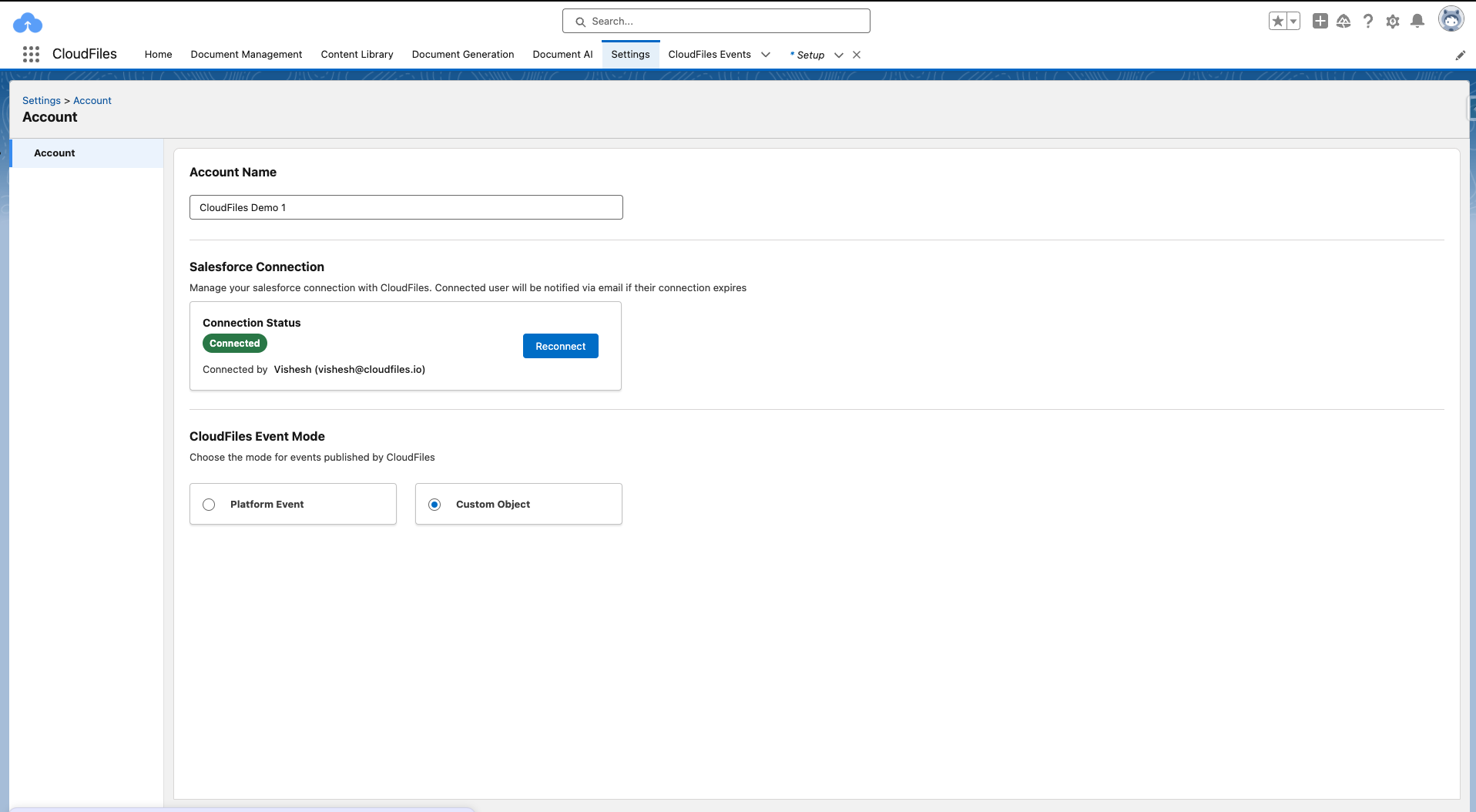
- The CloudFiles Event Mode setting is set to Custom Object
Initial Automation Setup
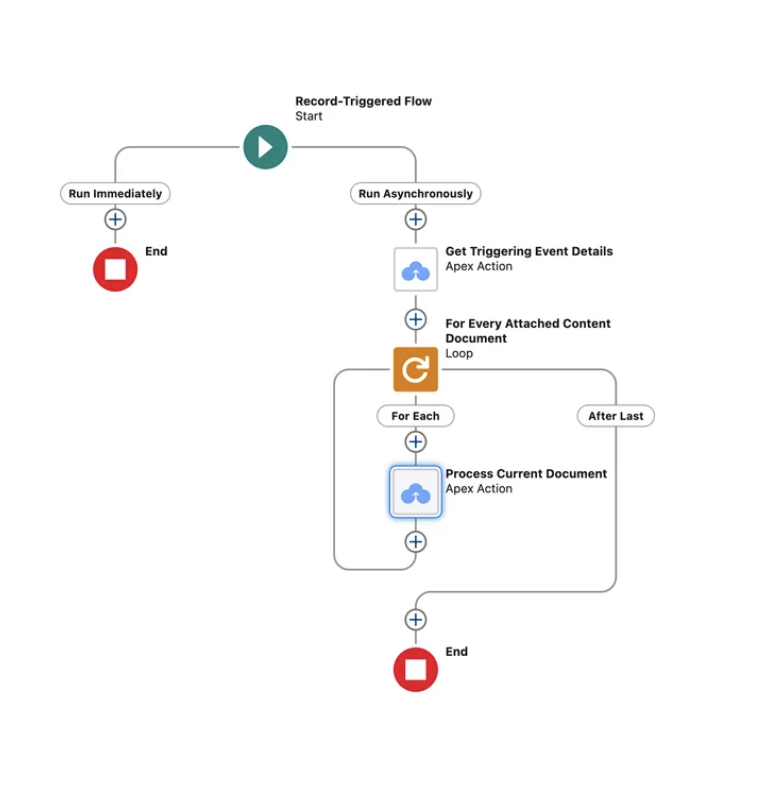
There are 2 flows you will need to set up to process the uploaded files. The first flow is triggered when the document is uploaded into Salesforce or external storage. This flow sends the file to AI for processing. This might take a few seconds. Once the AI is done with processing, the second flow will trigger which will contain the processed document. You can then run queries on this processed document.
- Flow 1: Send Document For Processing - Triggered when file is uploaded into Salesforce or external storage. Sends the file for processing which may take a few seconds to a minute.
- Flow 2: Document Processing Complete - Triggered when the file has been processed by AI. Performs queries on the file to extract the data.
All information related to setting up these flows is given in the AI Flows - Initial Setup Guide article. Please go through this article carefully to set up these flows.
Once your flow setup is complete, your flows should look like the following.
Query Automation Setup
Now that you have the initial automation setup, we can take the document processed flow and extend it to query the document and update the required fields. In this section, we show how to query the processed document, check the results and perform the necessary updates.
Querying the document
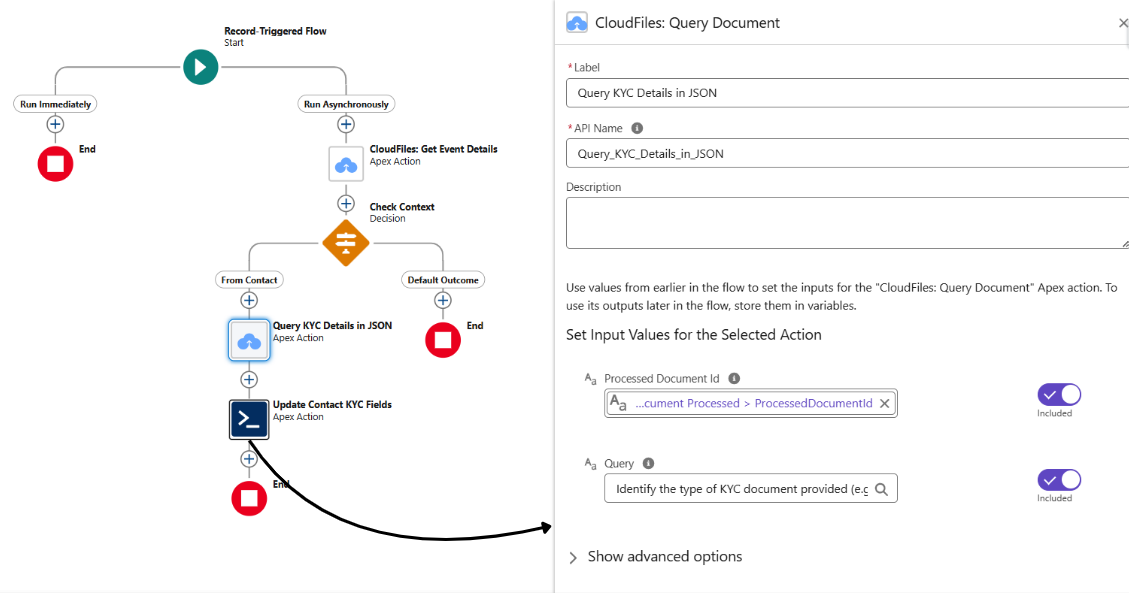
In order to query the document, we will simply use the Query Document/Dataset flow action. This action taken in a processed document ID and a text query as input. The processed document ID is available as output of the Get Event Details action.
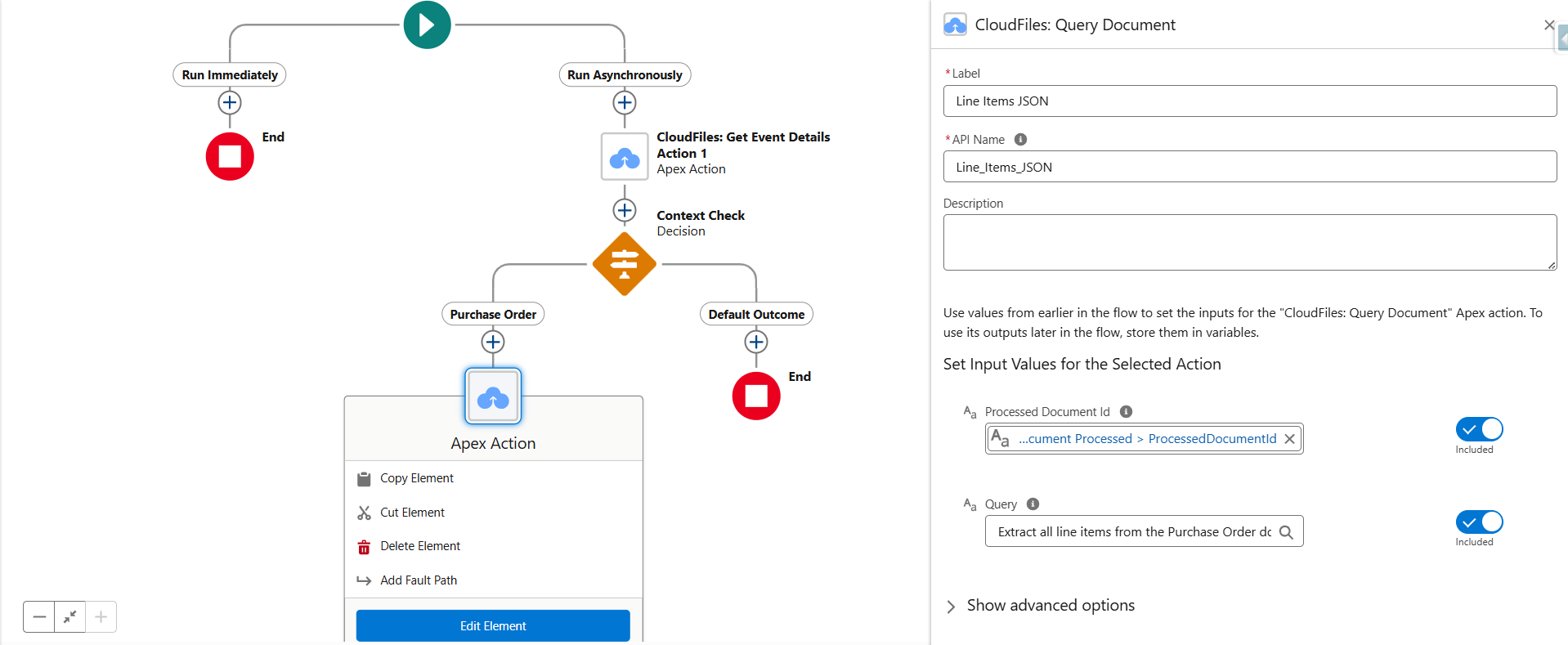
Here are the full inputs used in the above image:
Processed Document Id : {!Get_Triggering_Event_Details.DocumentProcessed.ProcessedDocumentId}
Query = AI can be guided to generate structured outputs and responses tailored to our specific requirements, thereby simplifying data processing. Provide a clear prompt that tells the AI what data to extract, the required format for each field, and the output structure (e.g., JSON). Specify how to handle missing values (e.g., use null ) and include any key mappings for integration.
For example, consider a Driver's License or Passport. We need to write a query to extract various details from the document, such as the type, number, issue date, expiry date, and the holder's name. The sample query for this is:
" Identify the type of KYC document provided (e.g., Passport, Driver's License). Extract the following fields from the document: Document Type (e.g., 'Passport', 'Driver's License') Document Number Full Name of the document holder Date of Issue (in YYYY-MM-DD format) Date of Expiry (in YYYY-MM-DD format) Return only the structured JSON in this exact format: { "KYC_Document_Type__c": "", "KYC_Document_Number__c": "", "KYC_Document_Holder_Name__c": "", "KYC_Document_Issue__c": "", "KYC_Document_Expiry__c": "" }\n If any field is missing or unreadable, return its value as null. Only return the JSON object and nothing else."
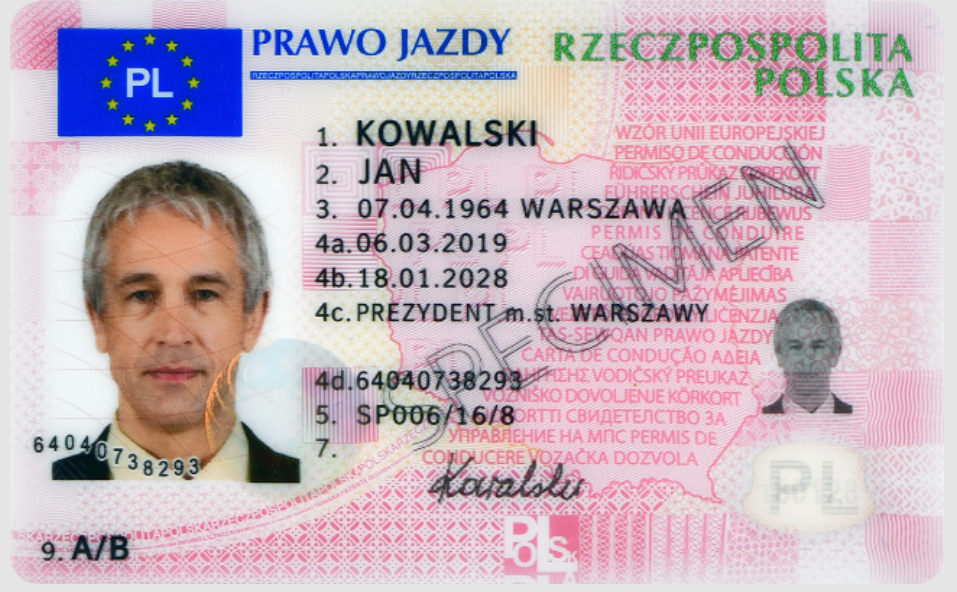
The AI output as tested on the above sample document is as follows:
{ "KYC_Document_Type__c": "Driver's License", "KYC_Document_Number__c": "64040738293", "KYC_Document_Holder_Name__c": "KOWALSKI JAN", "KYC_Document_Issue__c": "2019-03-06", "KYC_Document_Expiry__c": "2028-01-18" } The AI output as tested on the above sample document is as follows:
{
"KYC_Document_Type__c": "Driver's License",
"KYC_Document_Number__c": "64040738293",
"KYC_Document_Holder_Name__c": "KOWALSKI JAN",
"KYC_Document_Issue__c": "2019-03-06",
"KYC_Document_Expiry__c": "2028-01-18"
}Process AI Output Using Apex Action
Once the line items are available in JSON format, they can be processed in various ways within Salesforce. In this case, we use an Apex Action to process the output —it parses the JSON, maps each data field to the appropriate Object field, and updates the corresponding fields on the Contact record.
This is the Apex code used to process the JSON input :
See it in Action
Now that everything is set up, you can test your flows. When a Purchase Order is uploaded as a Salesforce File on the record, the corresponding order line items are automatically extracted, created, and listed.
Note: As Flow Automation executions and document processing via AI may take a short time, the field updates will not reflect immediately. To view the updates, wait briefly and refresh the page.
Whenever a file is processed using the Process Document using AI action, a Document Processed object record is published.
You can query these event object records to verify successful file processing and debug the flow.
Example SOQL Query:
To check Document Processed events sorted by the most recent:
SELECT Id, Name, CreatedDate, cldfs__Data__c
FROM cldfs__CloudFilesEvent__c
WHERE cldfs__Type__c = 'document-processed'
ORDER BY CreatedDate DESC
You can check the Context and File Details in the Data Field of the record.
When a flow runs in debug mode and executes Query Document/Dataset action, you can check the results and modify the queries if required.
SELECT Id, Name, CreatedDate, cldfs__Data__c
FROM cldfs__CloudFilesEvent__c
WHERE cldfs__Type__c = 'document-processed'
ORDER BY CreatedDate DESC
You can check the Context and File Details in the Data Field of the record. When a flow runs in debug mode and executes Query Document/Dataset action, you can check the results and modify the queries if required.