Decision
Branch on rules you write over values already in the flow. Deterministic — no AI at run time. Needs an else branch.
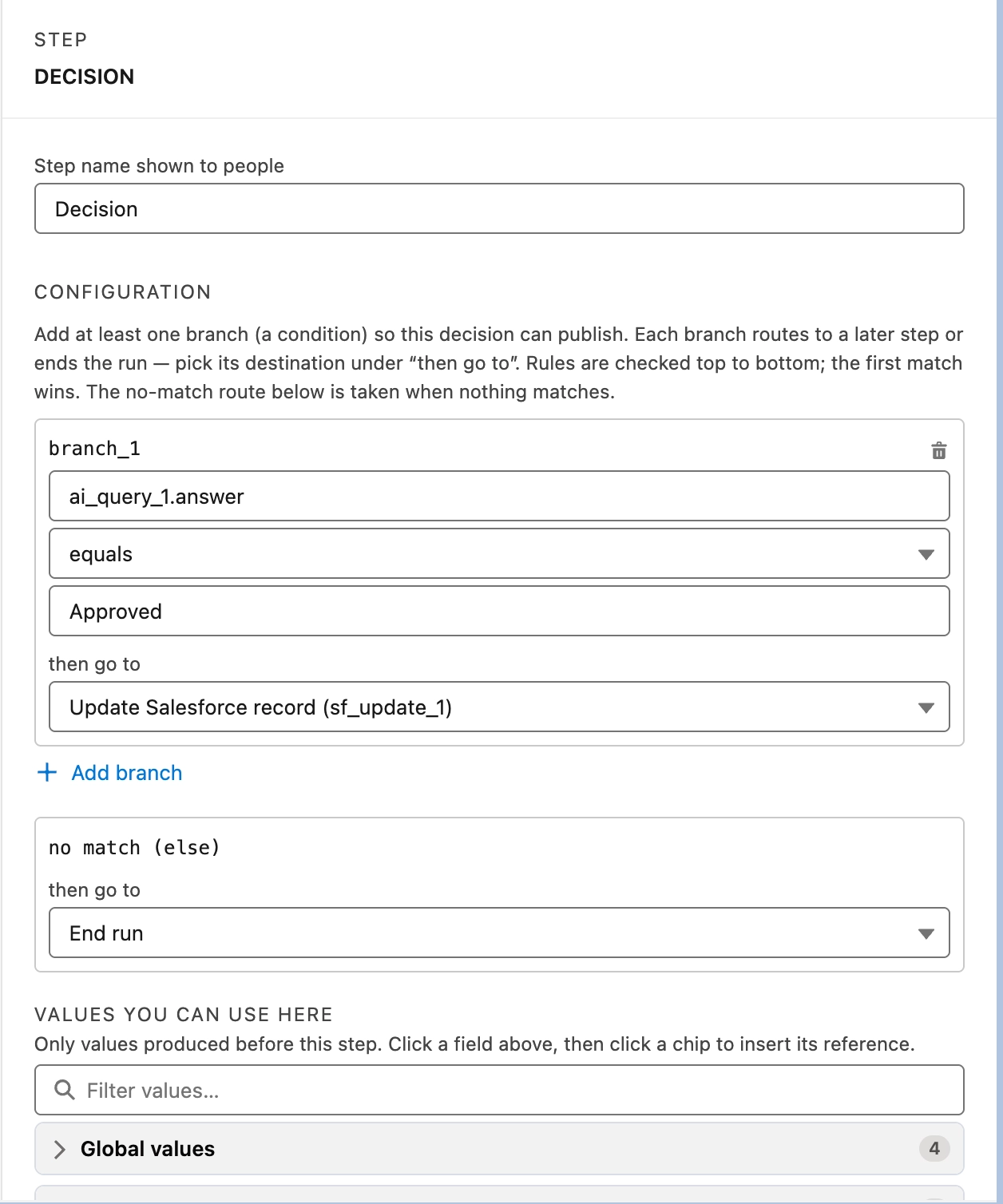
This is the step nearly every workflow needs: it's how several separate answers become one outcome. Its inspector states the rule directly: "Add at least one branch (a condition) so this decision can publish. Each branch routes to a later step or ends the run — pick its destination under 'then go to'. Rules are checked top to bottom; the first match wins. The no-match route below is taken when nothing matches."
- Click + Add branch to add a condition row — auto-named
branch_1,branch_2, and so on, with a delete icon on its right. Each row takes a left value (usually a reference to an earlier step's result), an operator, and a right value or reference (hidden for the four operators that take no right-hand side). - Under then go to, choose the step to jump to, or End run.
- Click + Add branch again for each additional rule. They're checked top to bottom, and the first match wins.
- Below your branches, the inspector always shows a fixed no match (else) row with its own then go to dropdown (defaulting to End run) — this is the mandatory route taken when nothing matched. Every Decision needs one, and it can't be deleted.
Operators: equals, does not equal, is greater than, is at least, is less than, is at most, contains, is empty, is not empty, is missing, is present.
Each branch reads one earlier step's result, so a Decision sitting under a row of comparison steps is where those separate answers get resolved into a single outcome — one branch testing a comparison step's answer equals a status string, the next testing a numeric step's answer is less than a threshold. Name your branches after the outcome they produce rather than after the field they test; the canvas shows those names as route chips, and they're what you'll read when you come back to the workflow in six months.
Put the checks that must not be overridden at the top. A run whose subject couldn't even be identified shouldn't then be judged on a threshold, so the ambiguity branches go above the substantive ones; the plain approval branch goes last, below every reason a run might be held; and the no match (else) route catches everything left over, which is usually the rejection default rather than End run. Reordering your branches changes behaviour even when no individual condition changed.
Is missing / is present ask only whether a value exists at all — an empty list and an empty piece of text both count as present. Is empty / is not empty ask whether it has anything in it — nothing at all, an empty list, and whitespace-only text all count as empty. To check "did the extraction actually find any line items," use is not empty, not is present.
Routing rules
Routes can only point forward. If a branch's destination step is later deleted or moved above the Decision, that branch flags "This branch pointed at a step that was deleted or moved above the decision. Pick a new destination," which blocks publishing.
Inside a loop, a route to a step after the loop is labelled "— exits loop," and the loop's own continuation reads Next item (back to loop).
What to branch on
| Situation | Branch on |
|---|---|
| A comparison step returned a verdict | that step's answer equals Yes / No / your status string |
| A step returned a number | that step's answer is less than / is at least your threshold |
| A document was classified | the Classify step's category equals a label |
| A lookup may have found nothing | the match count equals 0, or the AI picked flag |
| An extraction may have found no rows | the list is not empty (not is present) |
| A bulk write partly failed | the failure count is greater than 0 |
Set a value
Compute or set a value in the flow for later steps to use.
Good for building up a value across a loop, normalizing something, or holding a value referenced in several places.
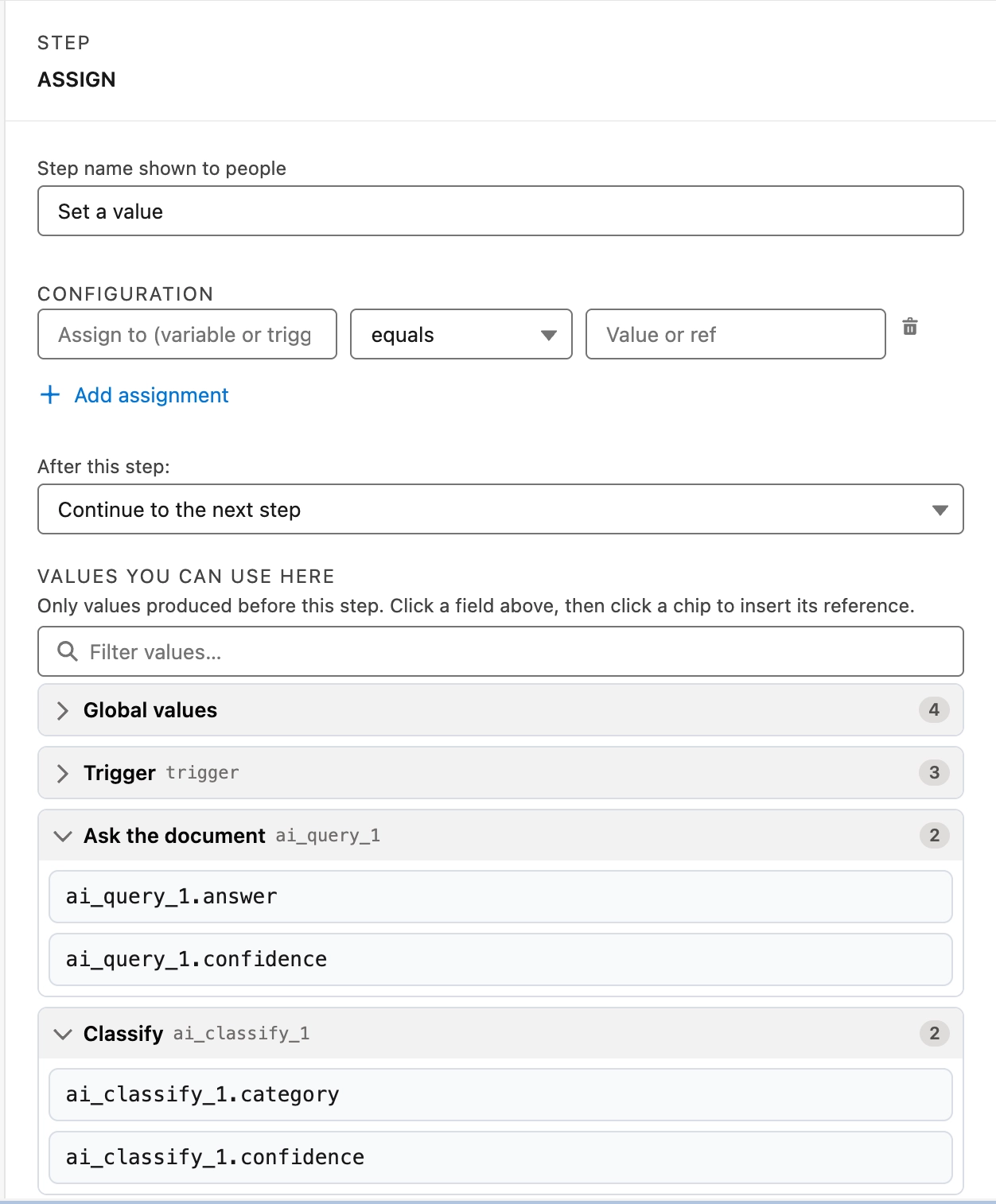
Each assignment is one row of three controls side by side — the target, the operator, and the value — with a delete icon at the end of the row.
- In the first box, Assign to (variable or trigger input), name the target — a variable, or one of your launch-form inputs. This is the only field in the builder you type a name into rather than insert a reference into; the reference picker refuses anything else here with "Assign only into a trigger input or a variable."
- Choose an operator: equals replaces whatever is there with the value (the default), and add combines — appending to a list, joining text end to end, or summing numbers, depending on the target's current content.
- In Value or ref, supply a fixed value or insert a reference from the picker.
- Click + Add assignment for each further target you want to set in the same step. One Set a value step can carry as many rows as you need, and they're applied top to bottom — so a later row can read a target an earlier row in the same step just wrote.
add only works on lists, text, and numbers — trying to add a checkbox value or a whole record fails the step.
Anything a Set a value step writes appears in the reference picker under the Variables group, available to every step below it.
That's the standard way to accumulate a total, or collect Ids, across every item and then use the result after the loop — use add on each pass, then read the variable in a step after After last item.
A Set a value step is not the way to feed a shared write step on several Decision branches. Give each outcome its own write step with literal values instead — see One write step per outcome in Workflows.
For each
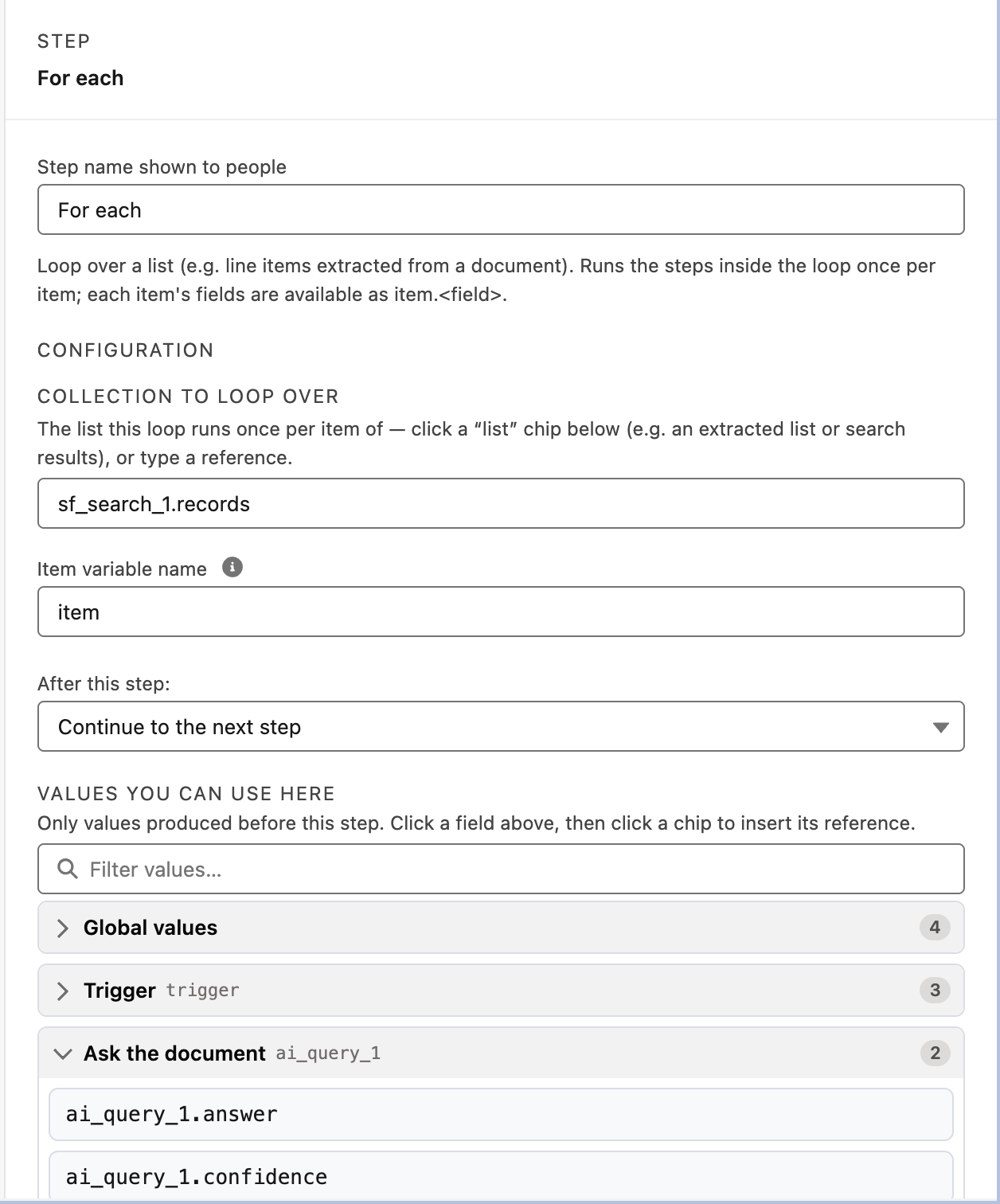
Loop over a list. Runs the steps inside the loop once per item; each item's fields are available as item.<field>.
- Under Collection to loop over, bind the list — click a "list" chip, or type a reference. Normally this is a list of items field from an Extract step, a collection document slot, or records from a lookup. Leaving it empty shows Choose a list for this loop to run over.
- Optionally rename Item variable name (defaults to
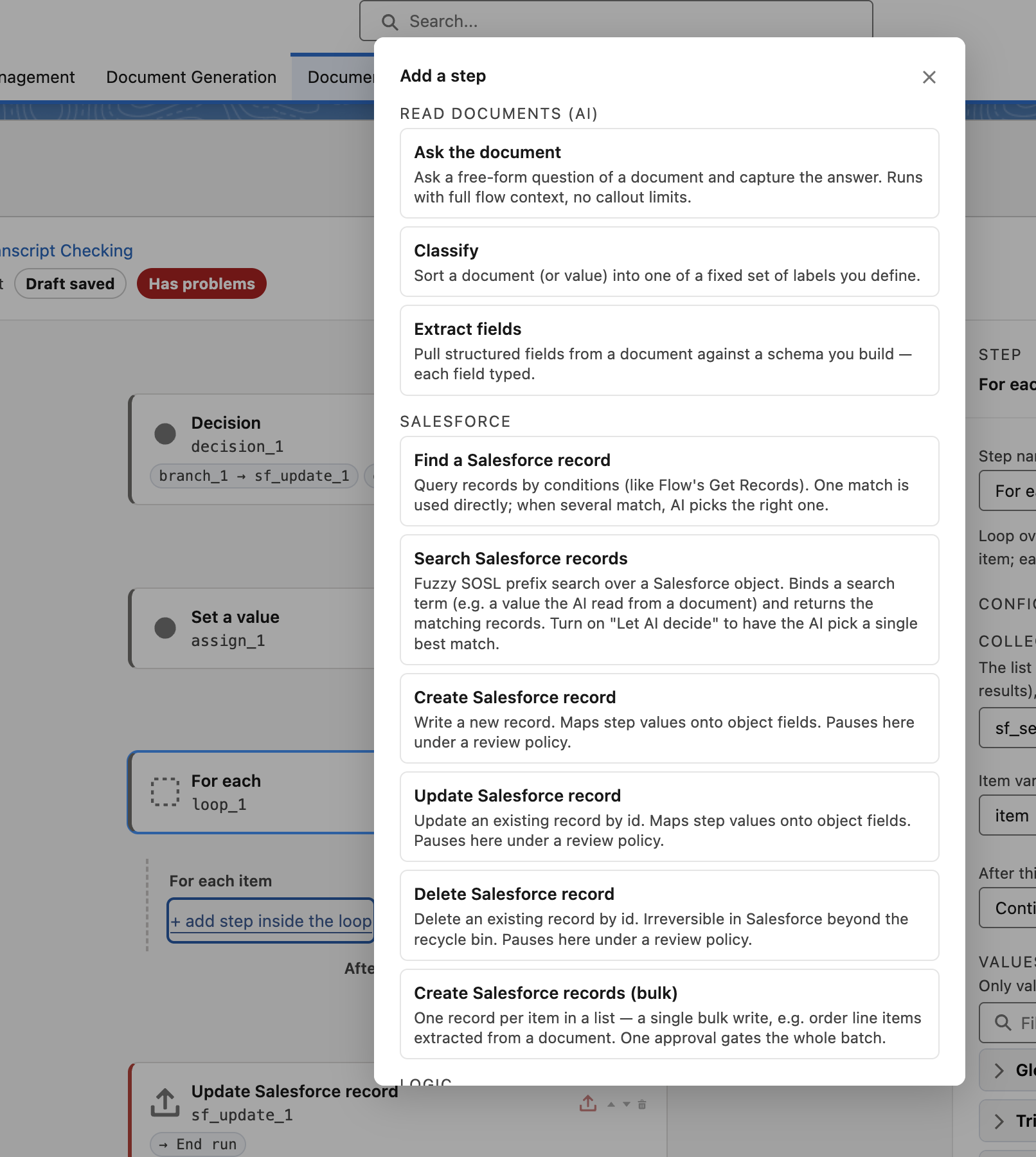
item). Inside the loop, the reference picker then offers the item itself, its position in the list, and each of its fields, under a Loop item group. - Add steps inside the loop's lane — labelled For each item — by clicking + add step inside the loop. This opens the same Add a step picker as the main canvas, with every step type available except For each itself. These run once per item, in list order. The lane ends with After last item, where the run continues once the list is exhausted.
Three things to plan around:
- Loops are one level deep. A For each can't be nested inside another — the picker hides For each while you're adding a step inside an existing loop.
- You can break out early by routing a step inside the loop to a step after the loop. That route is labelled "— exits loop" in the destination dropdown.
- There are size limits. A collection document slot caps at 50 files, and a loop over an extracted list caps at 500 items, after which extra items are skipped and the step records that it truncated.
Steps inside a loop can be deleted but not reordered with the move arrows. Writes are allowed inside a loop — and under Hold before the first write, the run holds once per item, so approving item 1 never releases the rest unreviewed.
If the only thing you do per item is create a record, use Create Salesforce records (bulk) instead — one write, one approval. Reach for a loop when each item needs its own reading, checking, or branching first. See Salesforce.
Wait
Pause the run for a fixed duration before the next step.
The builder stores its delay under one name while the engine expects another, so a published workflow containing a Wait step fails at the start of its first run with an input validation error. The field is also labelled in milliseconds while the value it stores is named in seconds. If you've already added one, delete it and republish — this will be fixed in a following release.
Related
- Workflows — creating the workflow, the launch form, references, validating and publishing.
- Read documents (AI) — the steps that produce the answers a Decision branches on.
- Salesforce — the lookups whose match counts you branch on, and the writes each outcome routes to.