The user each connection acts as
| Connection | Acts as | Typical use |
|---|---|---|
| MCP credential | Your CloudFiles account's system user, the same user CloudFiles Flow actions run as | Agentforce, and other services where no person signs in |
| AI app sign-in | The person who signed in and approved the connection | Claude, ChatGPT, Microsoft Copilot Studio, Cursor, VS Code |
An app connection always acts as a named person. Partner users cannot connect an app, and a session where someone is logged in as another user cannot approve one. A person's connection keeps working only while that person remains a user in the CloudFiles account.
What the agent can reach
A connection reaches exactly one CloudFiles account: the account it was created or approved in. Within that account, tools act through the connections your CloudFiles account already uses, such as your Salesforce org, your connected storage libraries and your e-signature service, the same way CloudFiles Flow actions do. An agent can therefore reach what those connections can reach, whichever person is chatting with it.
Decide what agents may do with the controls you already have. In Agentforce, allow only the tools an agent needs in Agentforce Registry, assign the server's permission set only to the users who should use them, and give the agent instructions and guardrails in Agentforce Builder.
Licenses and usage
CloudFiles tools follow the same license rules as the matching CloudFiles Flow actions: the user a connection acts as needs a license for the product a tool belongs to. The get-connection tool, which only reports the account and user a connection reaches, works without a license. Connections made with an MCP credential act as the system user. The system user does not take up a license, but your CloudFiles account needs the product the tool belongs to.
If a person who connected an app has no license for a product, CloudFiles assigns one the first time that person uses the product's tools only when the Auto Assign Licenses setting is turned on for that product and a license is available. If the setting is off, or no license is available, the tool answers that the person does not have a license and asks them to contact their CloudFiles admin, who can assign one.
The Connect with CloudFiles page
When a person connects an AI app, CloudFiles shows the Connect with CloudFiles page after they sign in. Nothing is connected until they click Continue.
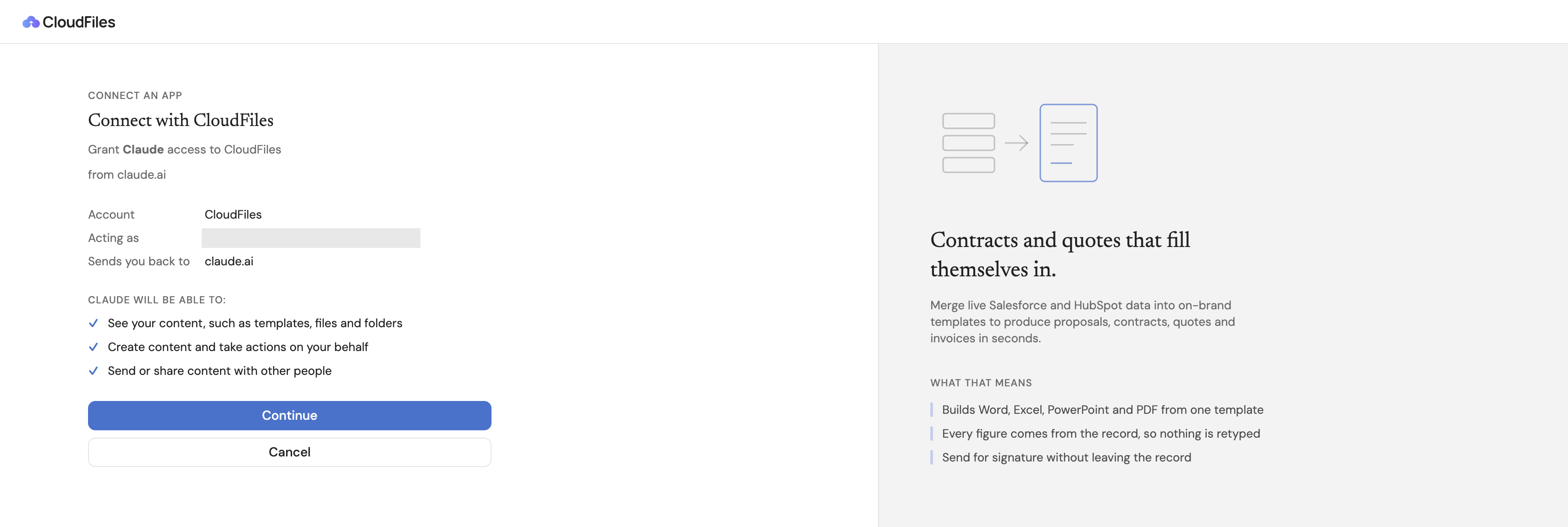
| On the page | What it shows |
|---|---|
| Grant app access to CloudFiles | The name of the app asking to connect. |
| from website | The website the app identifies itself with. |
| Account | The CloudFiles account the connection will reach. |
| Acting as | The CloudFiles user the app will act as: the person signing in. |
| Sends you back to | Where the browser returns after you approve. For an app that runs on your computer, such as Claude Code or VS Code, it adds an app on this computer. |
| App will be able to | What the app can do: see your content (templates, files and folders), create content and take actions on your behalf, and send or share content with other people. |
For an app that runs on your computer, the page also warns: This app runs on your computer. Continue only if you started connecting from an app on this computer just now.
Before you click Continue, check that the account is the one you meant to connect, that the app's name and website match the app you are connecting, and that you started the connection yourself. Click Cancel if anything is unexpected.
How long a connection lasts
An app connection stays active as long as the app keeps using it. If the app goes unused for a long period, you are asked to sign in and approve the connection again. An MCP credential does not expire. It works until a CloudFiles admin revokes it. To end a connection sooner, see Revoke Access and Disconnect Apps.