Create a credential
- In Salesforce, open the CloudFiles app.
- Select the Settings tab.
- Select MCP Credentials. The Client Credentials list shows the credentials in your CloudFiles account.
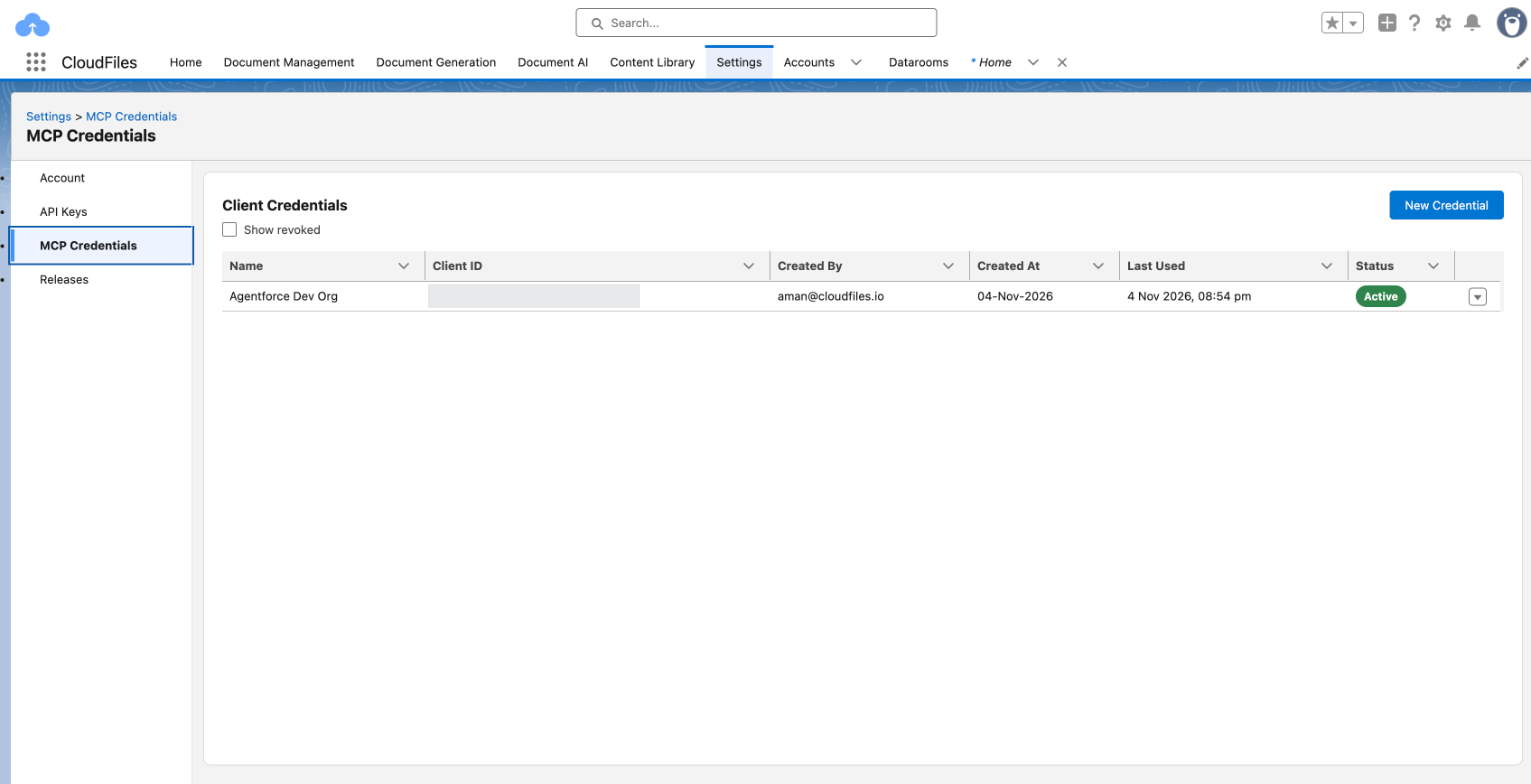
- Click New Credential.
- In Name, enter a name that says where the credential is used, for example Agentforce production. The name can be up to 100 characters.
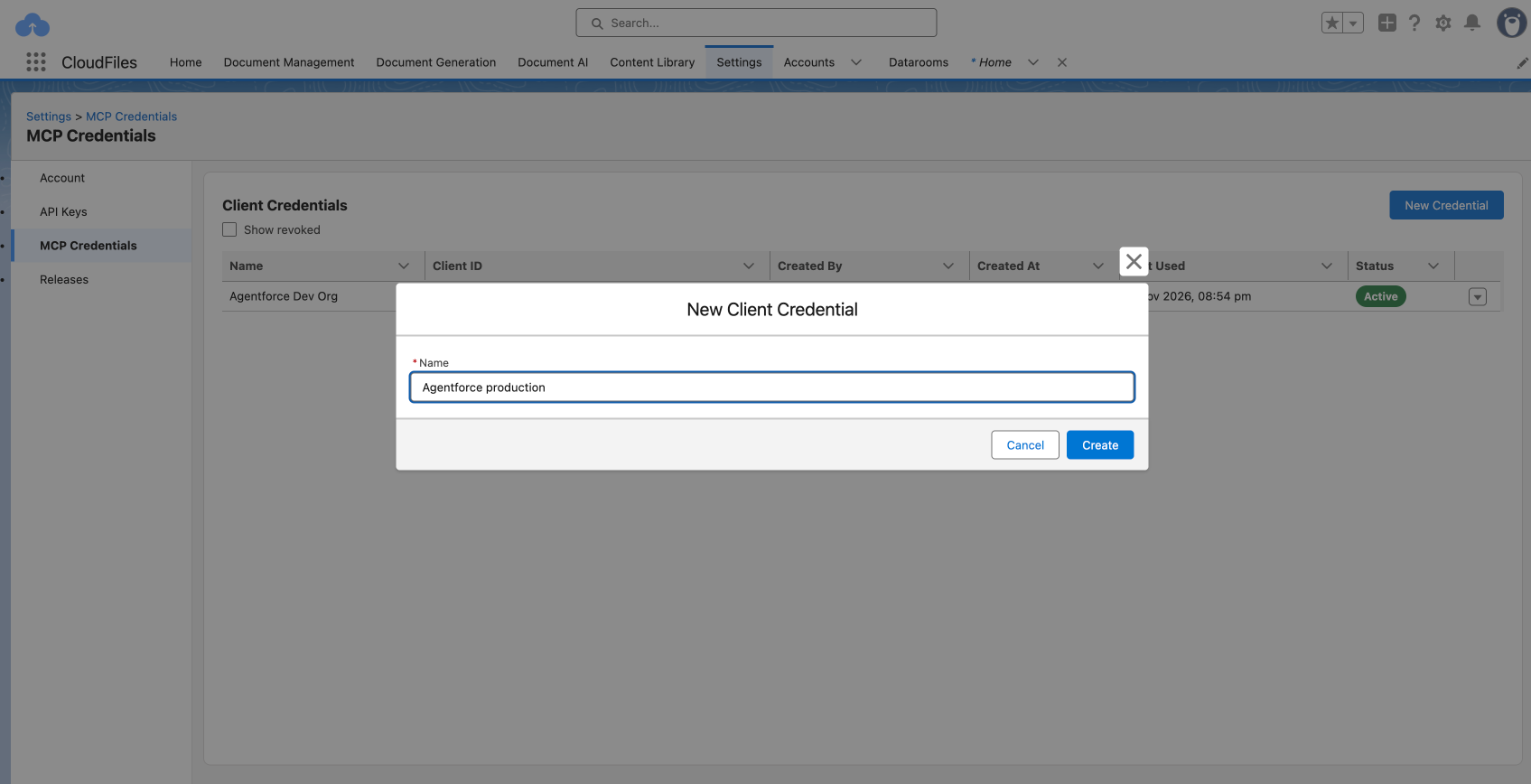
- Click Create. The Credential Created window shows four values, each with a copy button.
The client secret is shown only once. CloudFiles does not store the secret itself, so it cannot be shown again. If you lose the secret, create a new credential and revoke the old one.
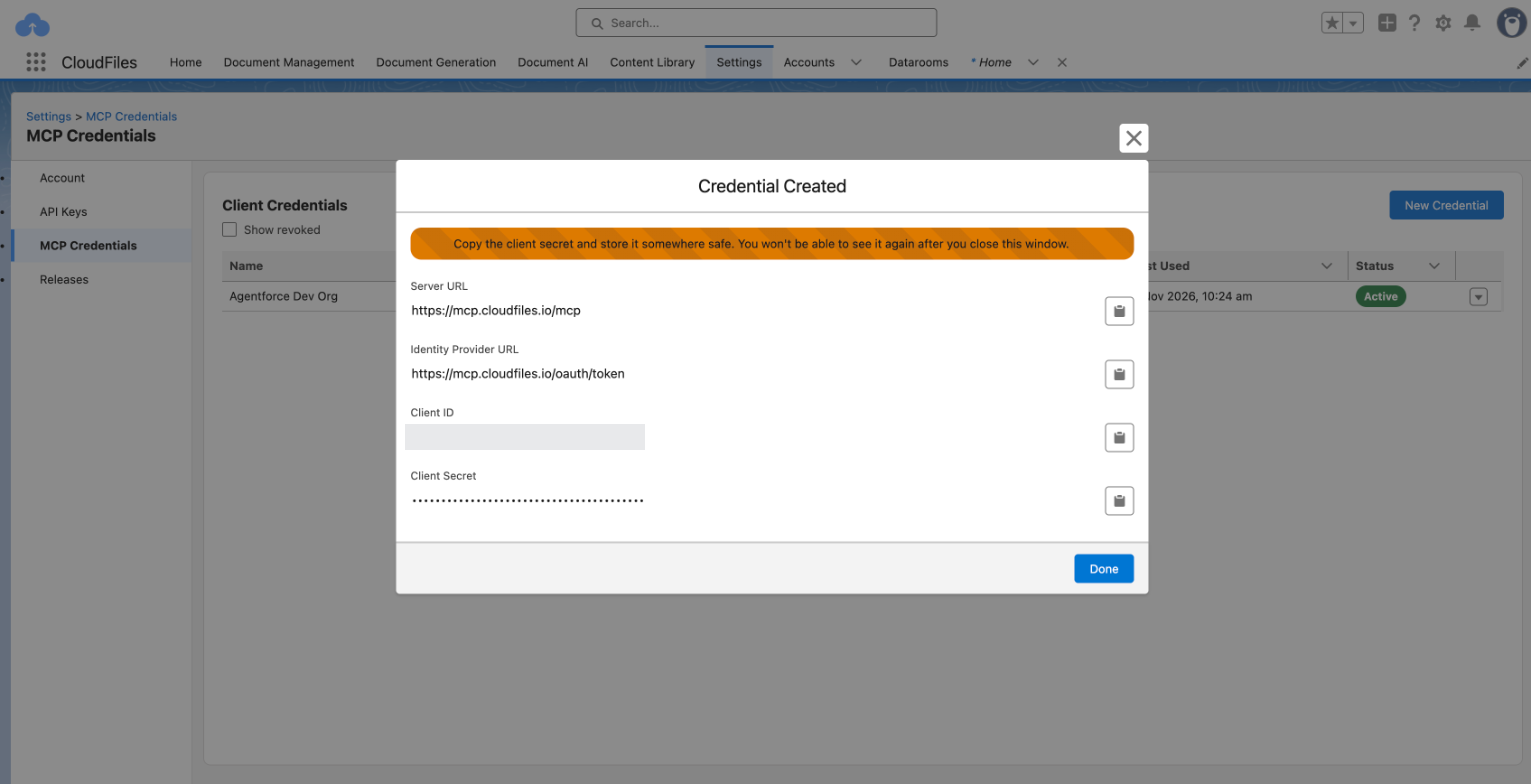
- Copy each value into the service you are connecting, or store the client secret somewhere safe until you do.
- Click Done.
The values you copy
| Value | What the service uses it for |
|---|---|
| Server URL | The address of the CloudFiles MCP server for your CloudFiles account's data region. The service connects to this address. |
| Identity Provider URL | The address where the service requests an access token with the client ID and client secret. |
| Client ID | Identifies the credential. It is not secret, and the credentials list shows it so you can match a service to its credential. |
| Client Secret | Proves the service holds the credential. Keep it private. |
CloudFiles credentials do not use scopes, so leave the Scope field empty when you register one, for example in Agentforce Registry. A value there is ignored. A credential can call every CloudFiles tool, and you choose which tools your agents may use in Agentforce Registry.
Manage your credentials
The Client Credentials list shows the credentials in your CloudFiles account, newest first, with each credential's name, client ID, who created it and when, when it was last used, and its status. Last Used fills in after the service makes its first request. Select Show revoked to include revoked credentials, which stay in the list with the status Revoked as a record of what was connected.
Revoke a credential
Revoke a credential when the service no longer needs it, or when its client secret may have been exposed.
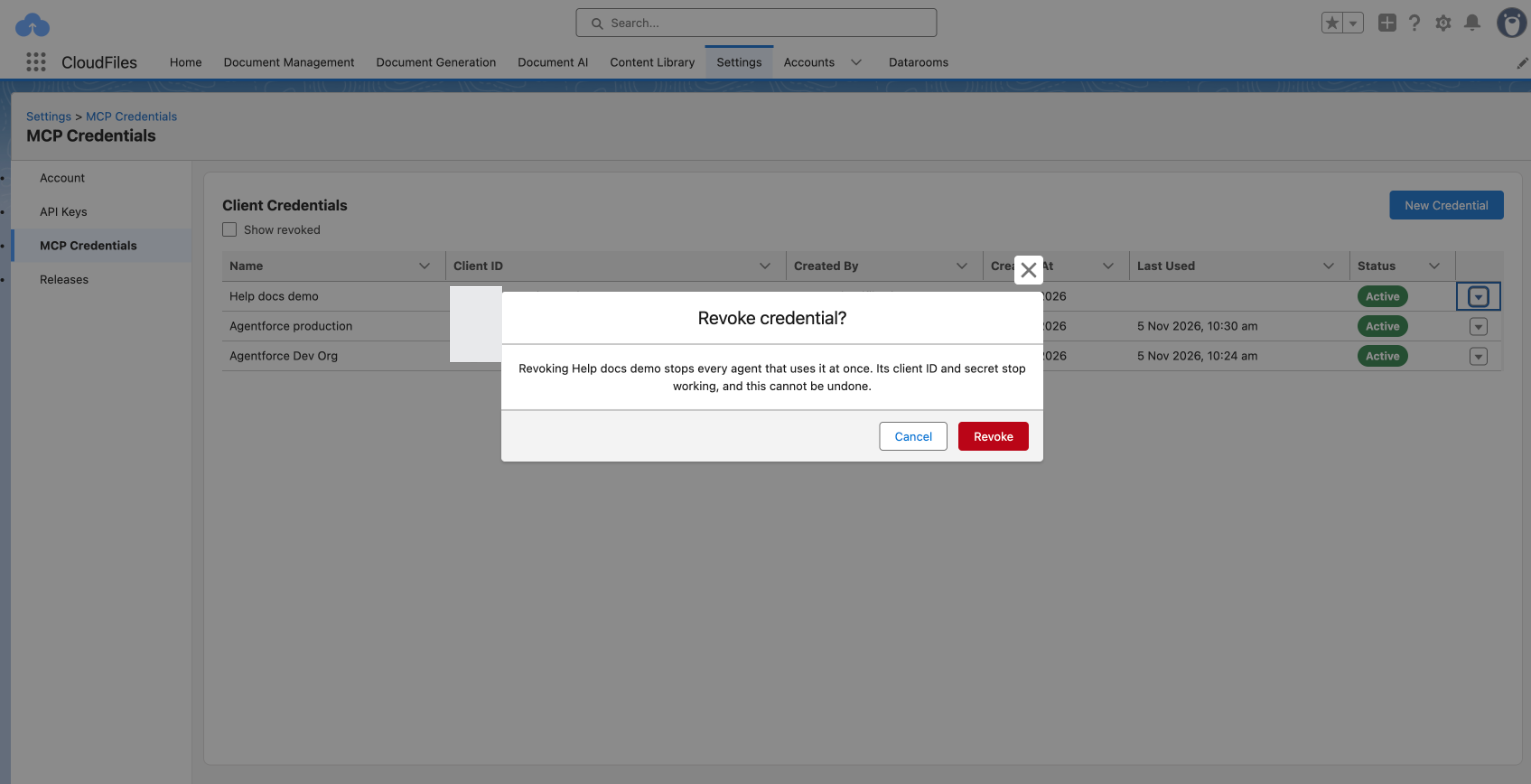
- In the credential's row, open the row menu and select Revoke.
- In the Revoke credential? window, click Revoke.
Revoking stops every agent that uses the credential at once. Its client ID and client secret stop working, and a revoked credential cannot be restored.
Replace a client secret
A credential's client secret cannot be shown again or changed. To replace it, create a new credential, enter its values in the service, confirm the service works, and then revoke the old credential.
Create a separate credential for each service that connects. Each credential works on its own: revoking one never affects the services that use the others.
Verify the setup
The new credential appears in the Client Credentials list with the status Active. After the service connects and makes its first request, Last Used shows the time of that request. Next, connect Agentforce with the values you copied.