Before you start
You need someone who can create apps and give permissions in your Azure account, to run a short setup script. Each container takes a few minutes.
Switch a container
- In Salesforce, open the Document Management app, go to Libraries, and select Azure Blob.
- On the container, click Switch to federated credential.
- Click Copy setup script, then paste it into Azure Cloud Shell (choose Bash) and press Enter.
- When it finishes, paste the Tenant ID and Client ID it shows into CloudFiles.
- Click Switch.

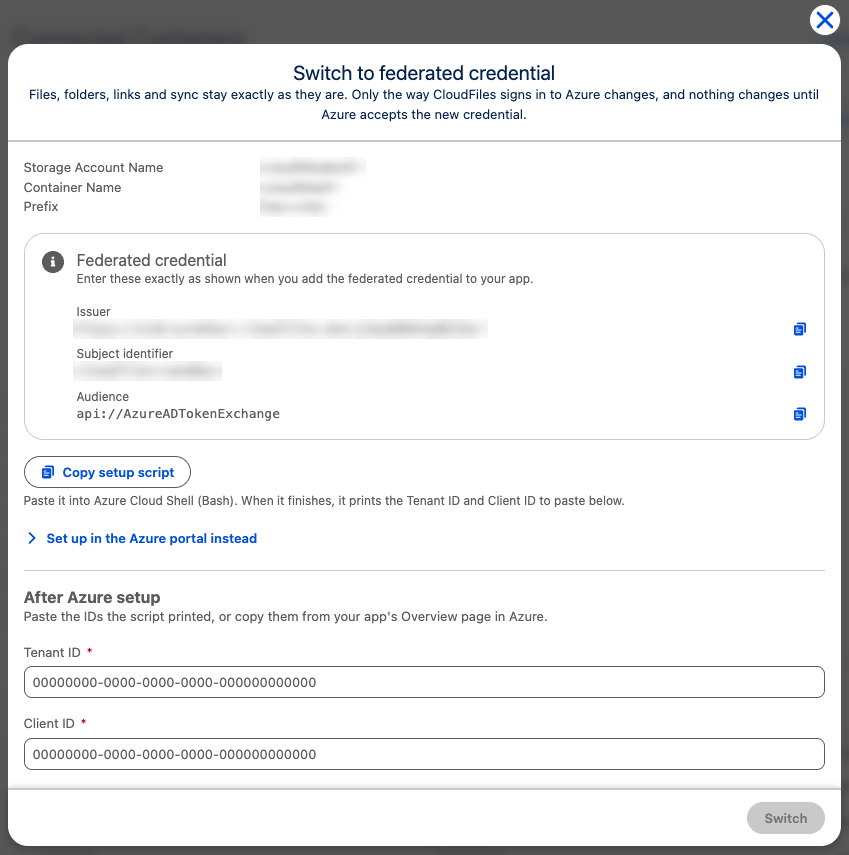
Azure can take a minute or two to finish, and CloudFiles keeps checking while it does. When the switch is done, CloudFiles confirms it and the Switch to federated credential button no longer shows on that container.
Prefer the Azure portal? Click Set up in the Azure portal instead and follow the steps CloudFiles shows. They are also in How to connect Azure Blob with a federated credential.
Switch every container
Switch each container in your org, and in each sandbox. The script uses the same app every time, so the Tenant ID and Client ID stay the same.
Until every container in your org and its sandboxes is switched, new containers are connected with the CloudFiles app. Once none shows Switch to federated credential, new containers use a federated credential too.
After every container is switched
Once every container on a storage account is switched, in your org and its sandboxes, you can remove the permissions you gave the CloudFiles app there: the Storage Blob Delegator role on the storage account and Storage Blob Data Contributor on its containers. Don't delete the CloudFiles app itself, as other CloudFiles connections may still use it.
The setup script gave the same two roles to the app it created, CloudFiles Storage (CloudFiles Storage (sandboxes) for sandboxes). Your switched containers use those roles, so leave them in place. Remove only the roles held by CloudFiles.
- In the Azure portal, open the storage account.
- Go to Access control (IAM) and select the Role assignments tab.
- In the search box, type CloudFiles.
- Tick each role held by CloudFiles: Storage Blob Delegator, and Storage Blob Data Contributor if it was given on the storage account. Click Remove, then Yes.
- Open each container on the storage account (Containers, then the container name), go to Access Control (IAM), and remove Storage Blob Data Contributor held by CloudFiles the same way.
If Azure says an inherited role assignment can't be removed, the role was given higher up, for example on the storage account. Click the link in the Scope column to open that level and remove it there.
If the switch doesn't go through
Nothing changes: the container keeps working with the CloudFiles app until the switch succeeds.
| If CloudFiles says | What to do |
|---|---|
| The federated credential doesn't match | Run the setup script again, then click Switch. |
| A storage permission is missing | Wait a few minutes for Azure to finish, or run the setup script again, then click Switch. |
| Only a Close button | The container can't be switched yet. In a sandbox, try again in a few minutes; otherwise contact support@cloudfiles.io. |