You can setup the CloudFiles app from within Salesforce by following the below steps.
- Click on the App Launcher (9 dots icon) on top left of Salesforce and search 'CloudFiles'.
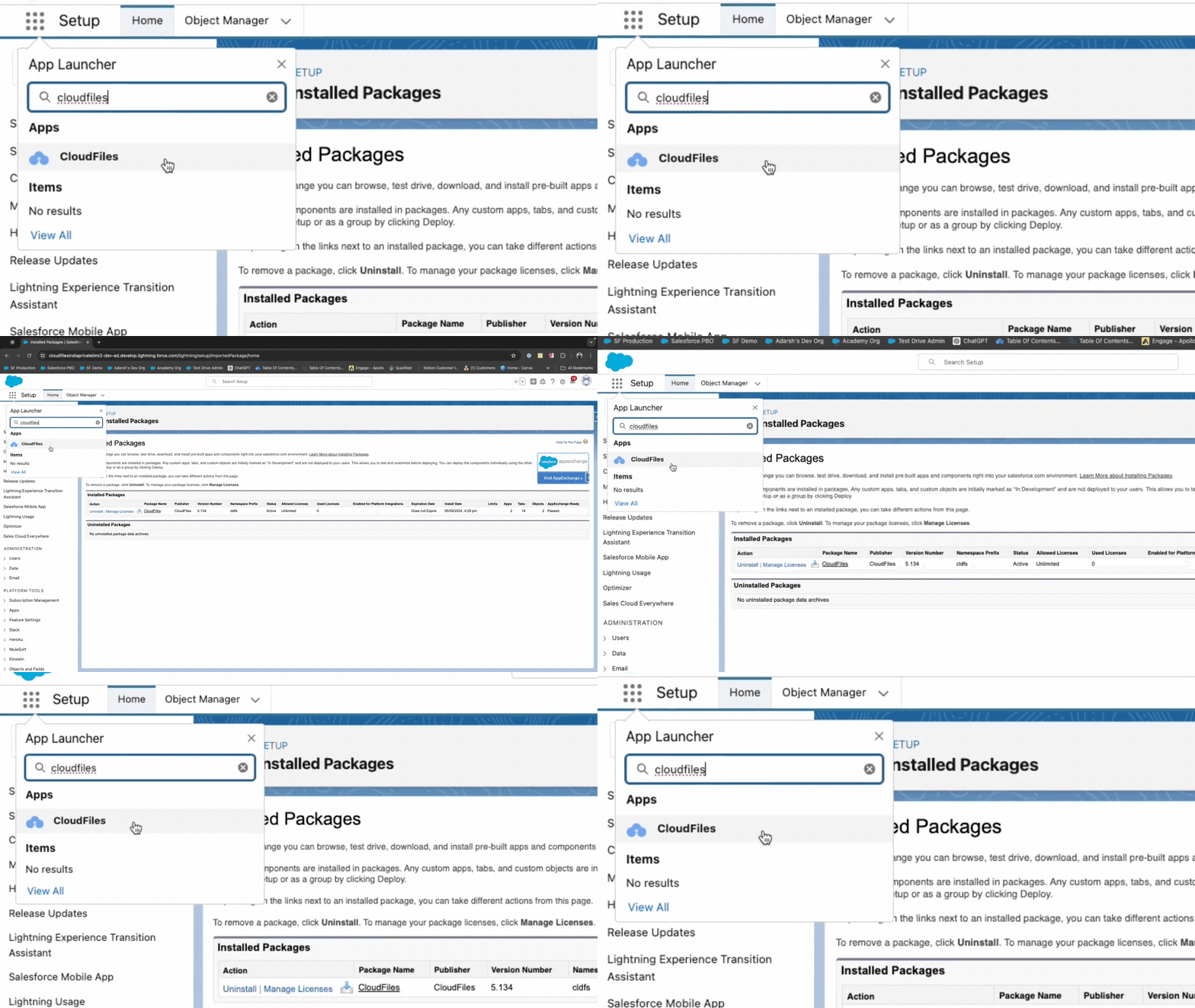
- You will land on the "Home" Tab of the CloudFiles App
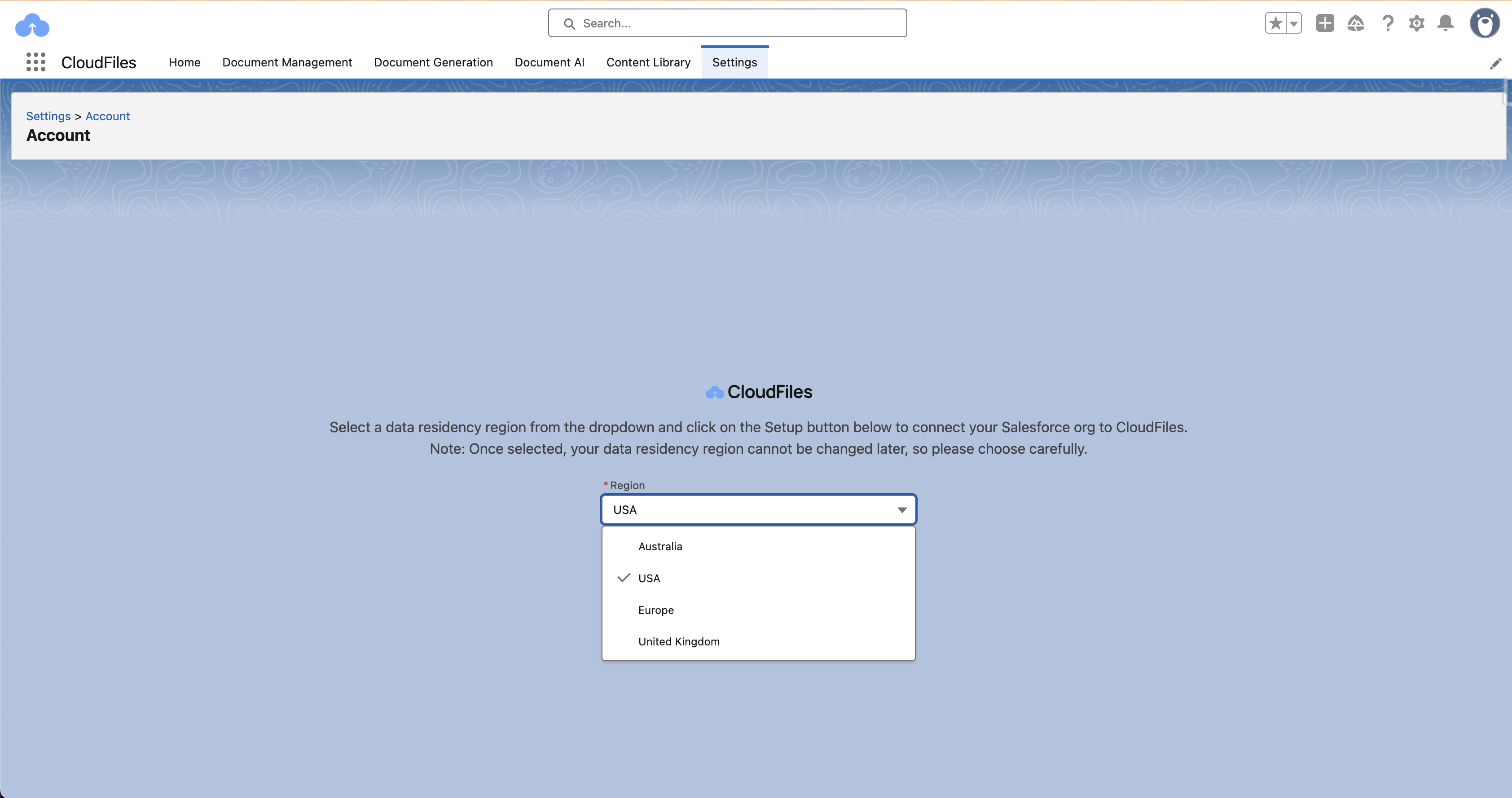
- Before connecting your Salesforce org to CloudFiles, select your preferred data region from the dropdown. Your data will be stored in your selected data region's data centers. We currently support the following regions:
- USA (default)
- Australia
- European Union
- United Kingdom
Note
This region selection determines where all your CloudFiles data (accounts, attachments, resource details, etc.) is stored and ensures your data never leaves the selected region for compliance with data residency requirements.
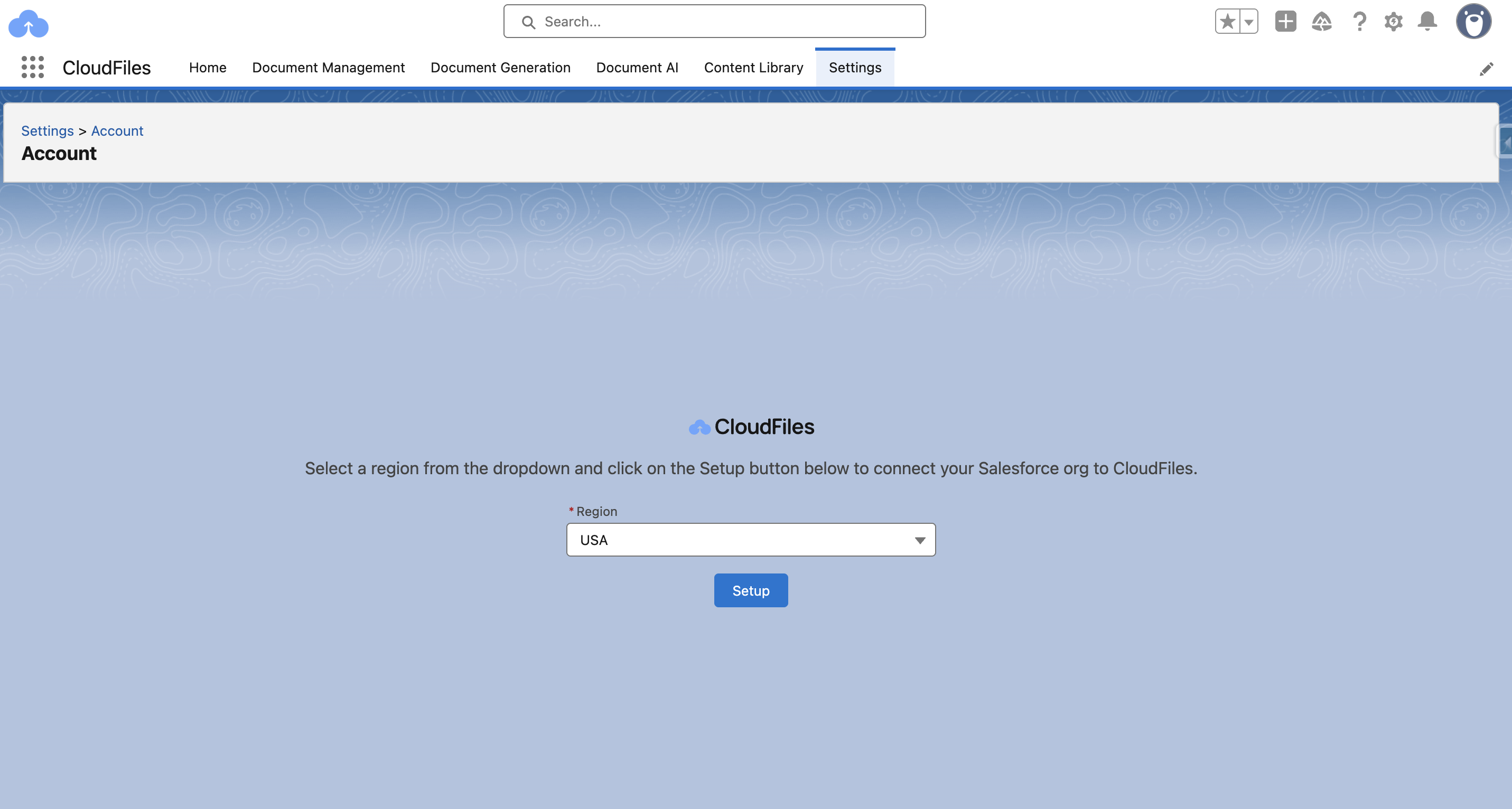
- Once you've selected your region, click on "Setup" button to connect your Salesforce org to CloudFiles.
- This pops the "Allow Access ?" prompt. Click "Allow".
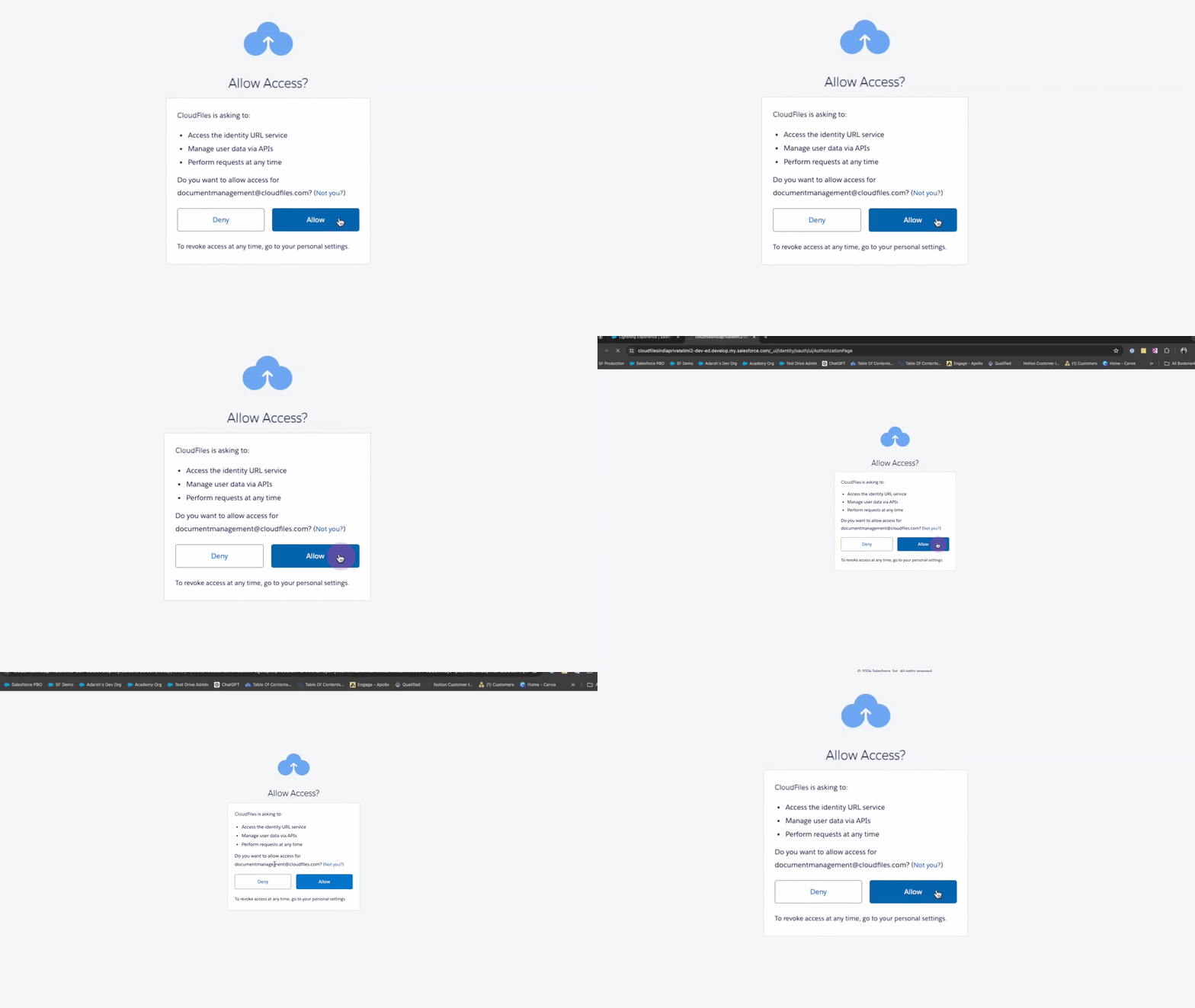
- This connects your Salesforce Org with CloudFiles.
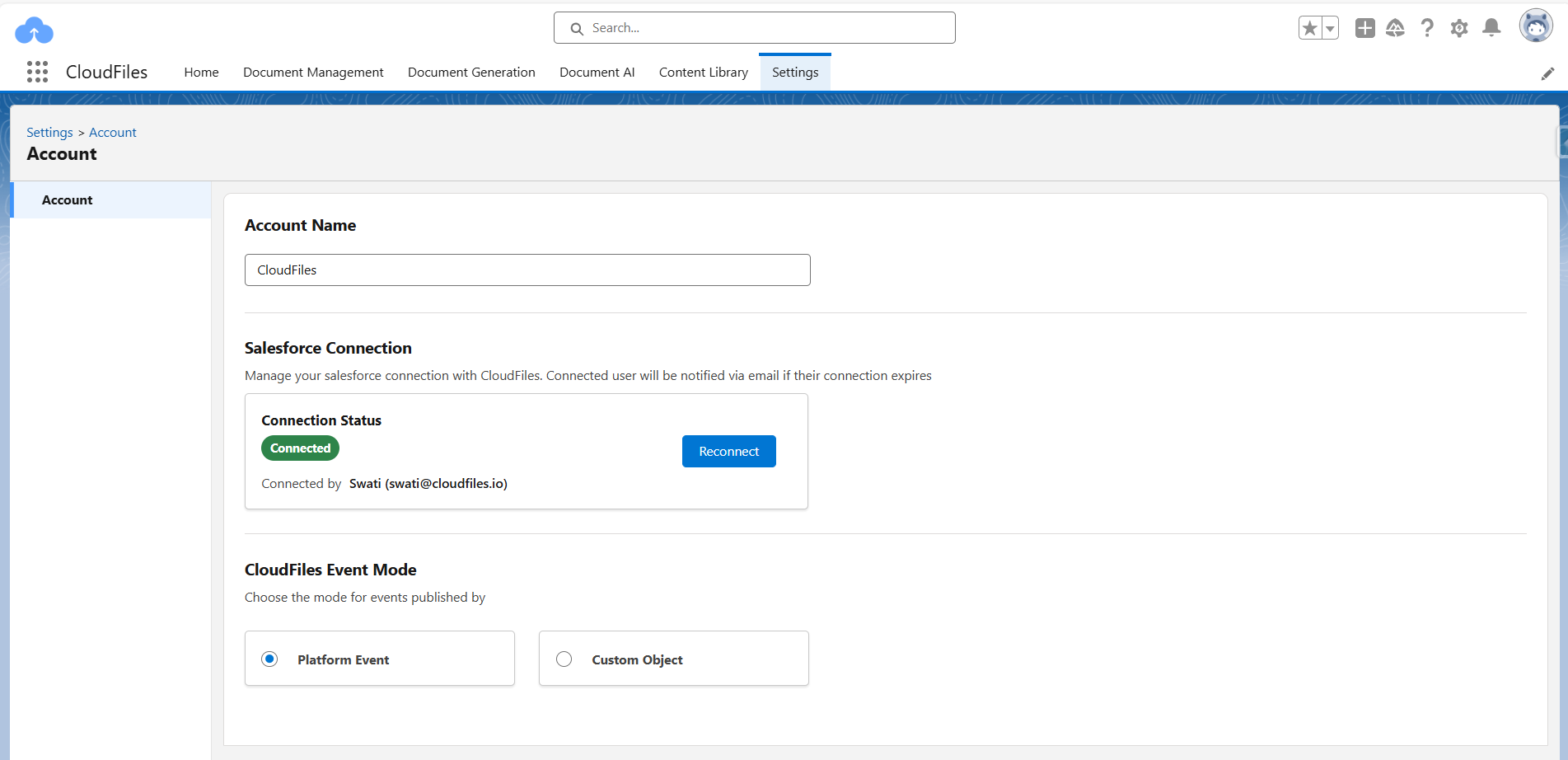
You can confirm the Account details and connection status in the "Settings" Tab.