What to Expect
By the end of this tutorial, you will know how to:
- Add the Doc-Gen widget to a Lightning record page
- Generate documents manually from a record
- Use the available options after a document is generated
Tutorial Video
Refer to the quick video if you would like to have a visual guide for this tutorial. Read on if you prefer textual content.
Video will be added soon
Pre-requisites
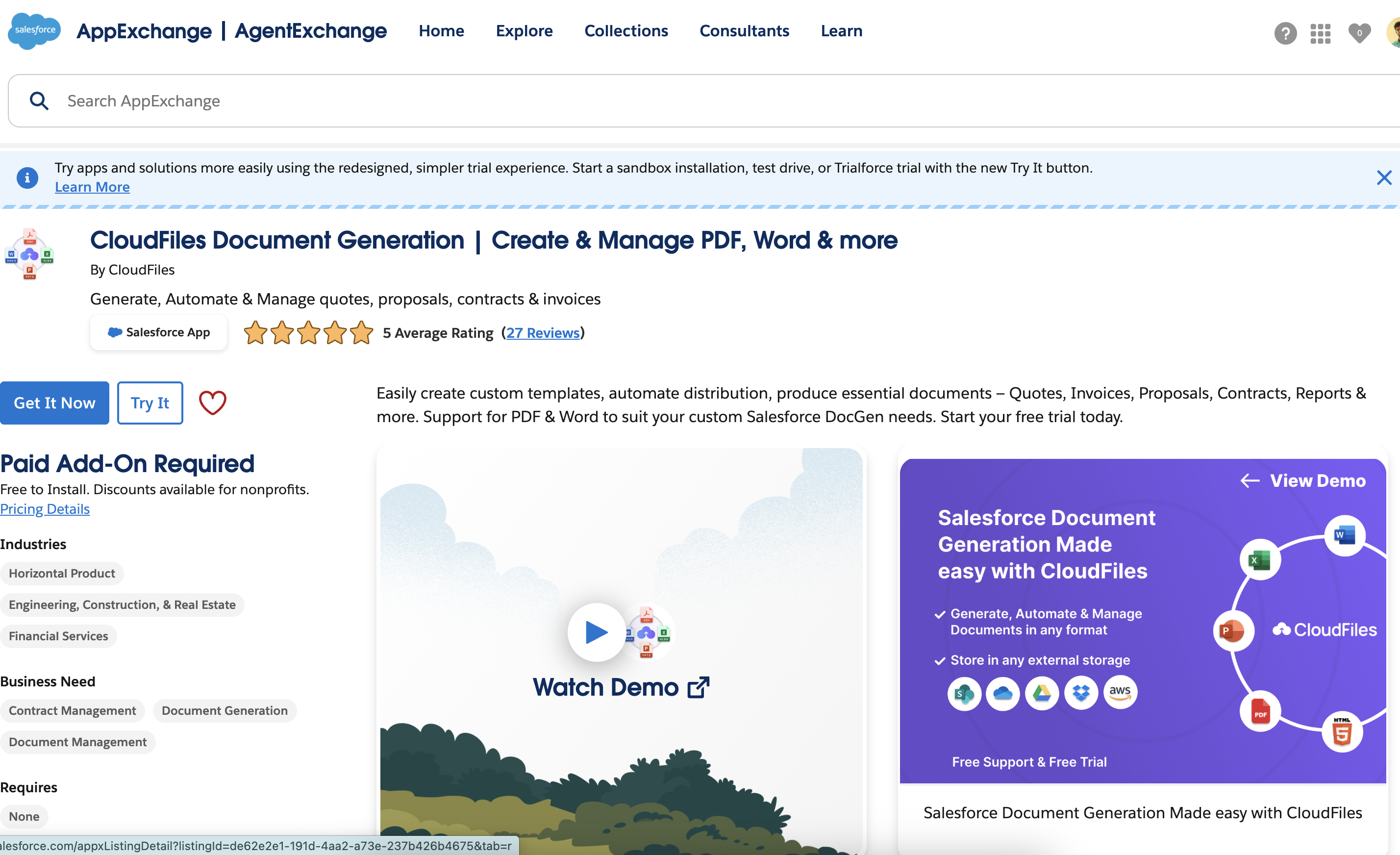
Install CloudFiles in Salesforce
CloudFiles is available on the Salesforce AppExchange and can be installed using the standard app installation process. Check out Installation and Configuration guides to set up your account and user access.
Doc-Gen Templates
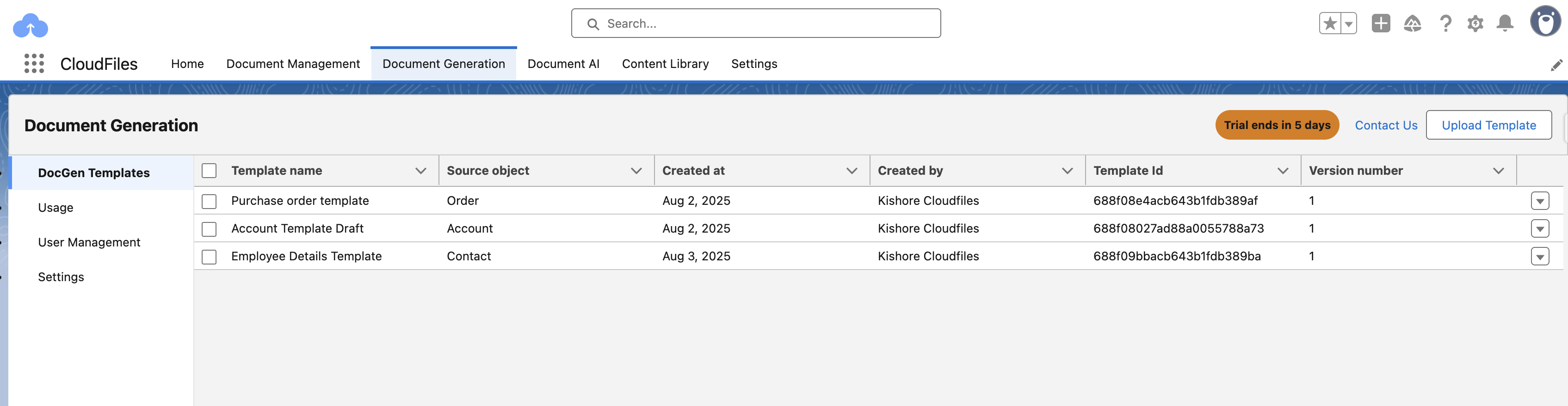
Ensure that the templates published for the object are listed under the Document Generation tab → DocGen Templates.
Add the Widget to Record Page
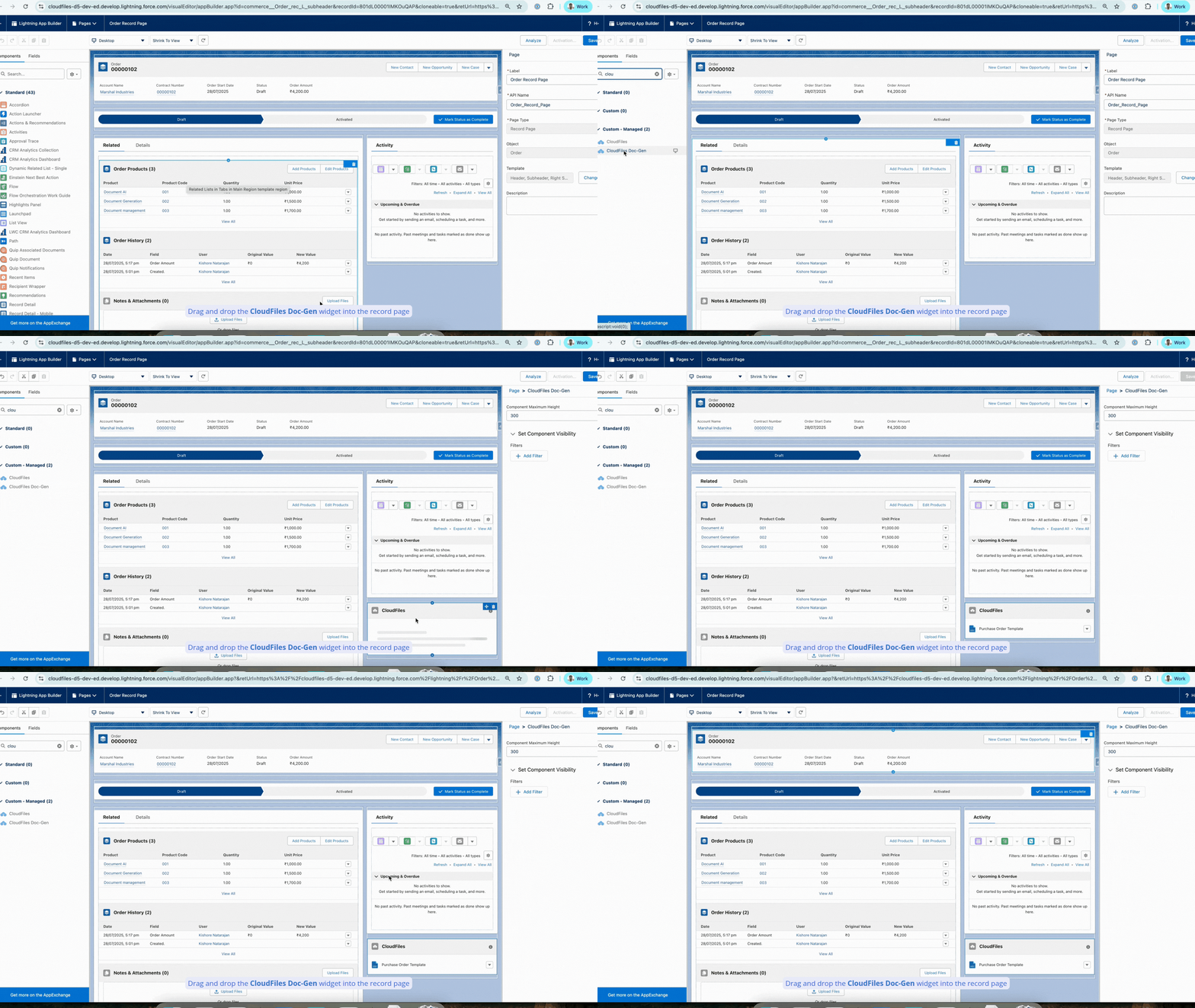
- In Salesforce, go to Lightning App Builder for the record type (e.g., Order).
- From the Components list, find and drag CloudFiles Doc-Gen into the page layout.
- Click Save, and activate the layout if needed.
The GIF below shows how to add the CloudFiles Doc-Gen widget to the record page
Once the widget is added to the record page, the record will automatically display the published templates available for that object within the widget.
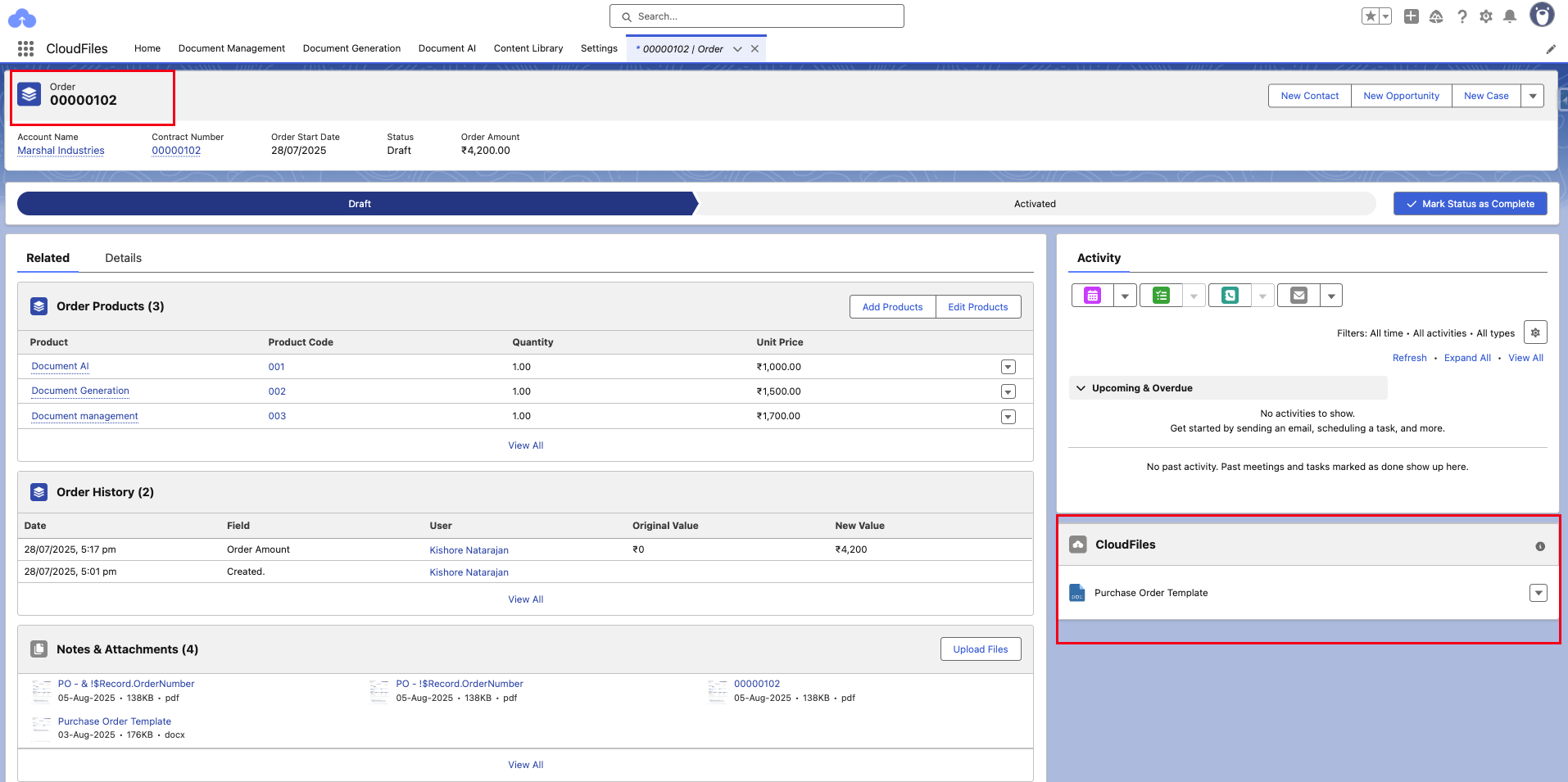
Test the setup
- Navigate to a record where the CloudFiles Doc-Gen widget has been added.
- In the widget, you'll see all published templates available for that object.
- Click the Generate (dropdown) next to the template.
- If the template contains required runtime variables, the menu displays Generate Docx (fill required fields) or Generate PDF (fill required fields).
- If prompted, enter the required values in the Fill in Document Details dialog and click Generate Document.
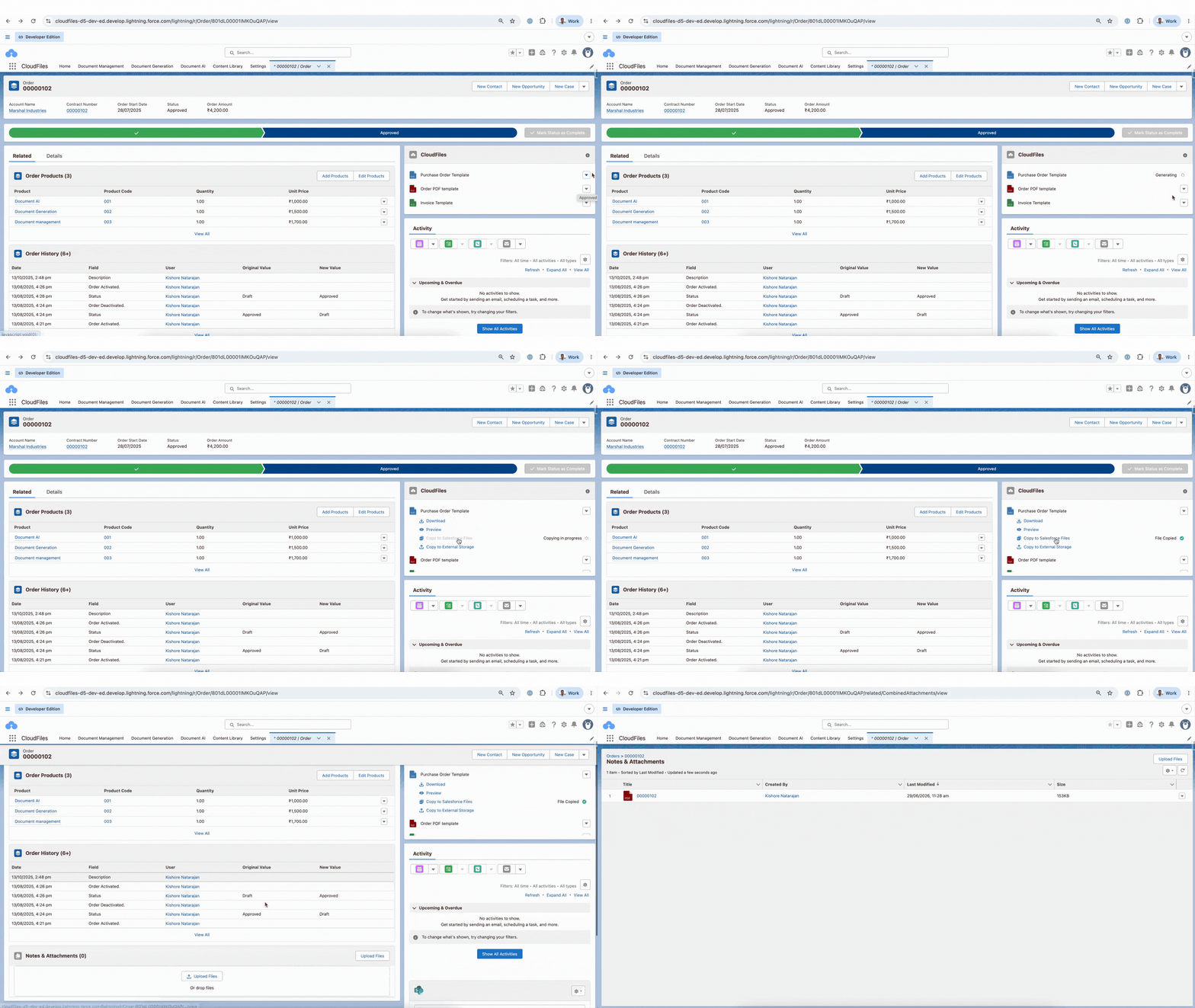
- After the document is generated, use one of the available actions:
- Download – Downloads the generated document to your computer.
- Preview – Opens the generated document inline within Salesforce.
- Copy to Salesforce Files – Saves the generated document as a Salesforce File related to the current record.
- Copy to External Storage – Copies the generated document to a connected CloudFiles library (such as SharePoint, OneDrive, or Google Drive). Browse the available folders and select the destination without leaving Salesforce.
- Send for e-Signature – Sends the generated document for e-signature directly from the CloudFiles Doc-Gen widget.
Note: Copy to External Storage is only available to users with the fileUpload custom permission and is not supported when Service Account Authentication is enabled for the org.
The GIF below shows how to manually generate a document and copy it to Salesforce attachments.